All lines
Above-ground
Drip irrigation
Underground
Online catalogue
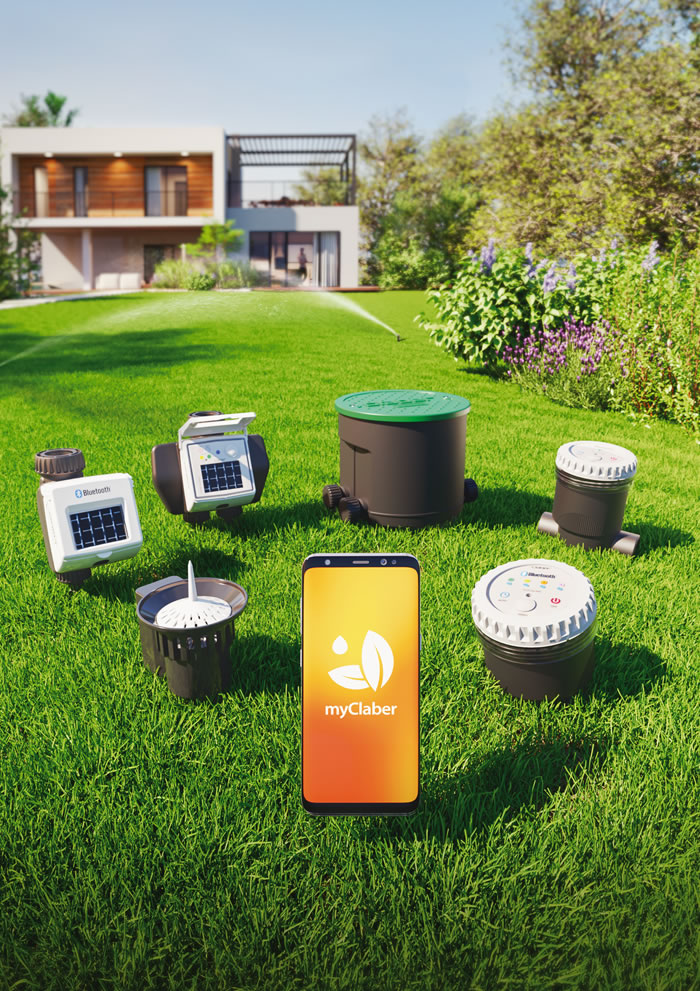
Solar-powered programmer operating without batteries and controllable exclusively via smartphone through the myClaber app using Bluetooth® technology.
To start using the product, the myClaber app must be installed on your smartphone. The myClaber app is available on Google Play® and the App Store®.
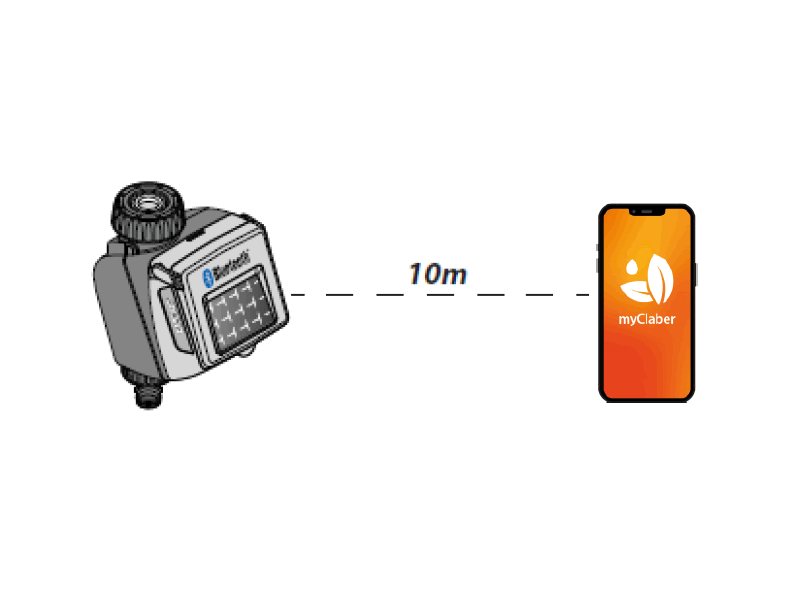
During communication between the app and the programmer, stay within a radius of 10 m from the device.
Open the myClaber app. Please note that the operations will require the use of Bluetooth® technology. Make sure it is enabled on your smartphone.
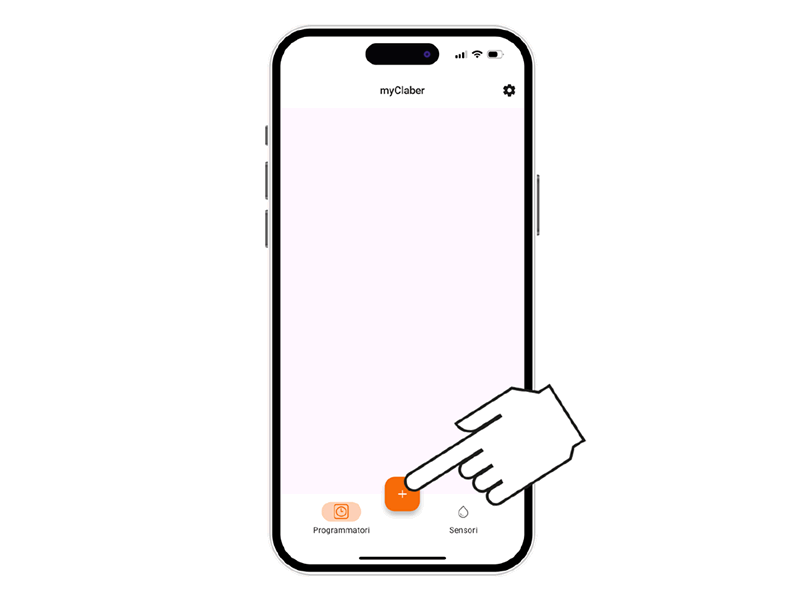
From the main screen of the app, press the “+” button to add a programmer.
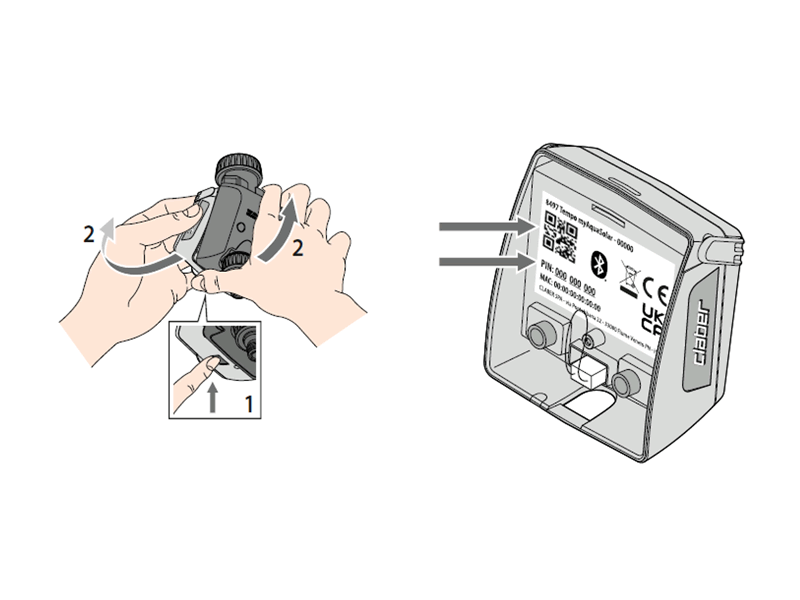
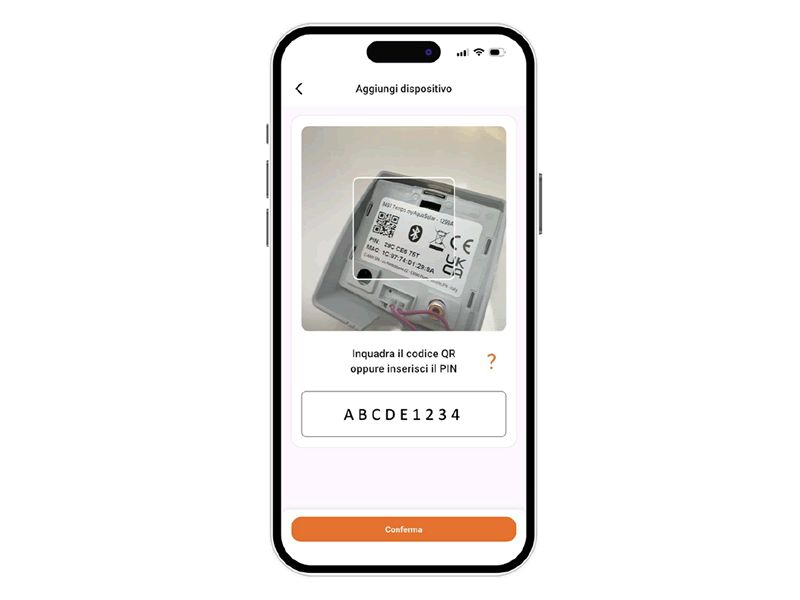
Enter the numeric code (PIN) or scan the QR code.
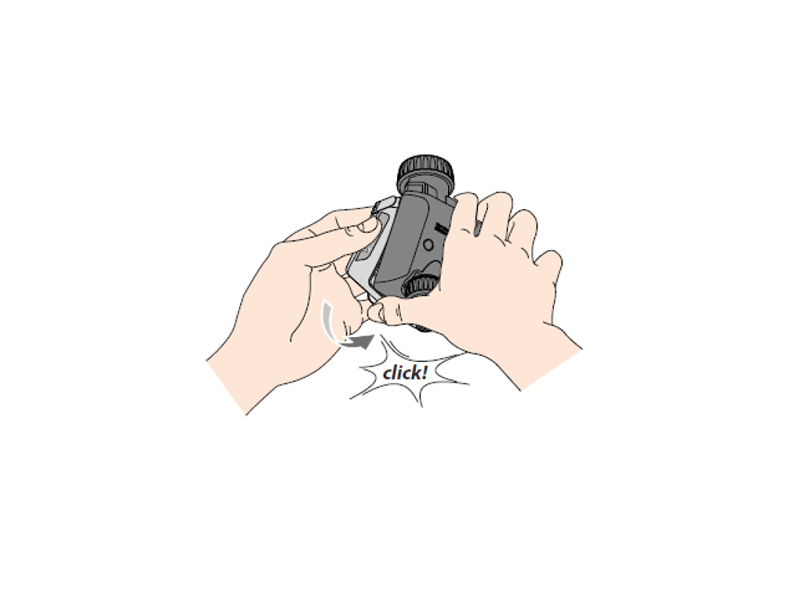
These details are shown on the back of the control module: detach it from the body of the programmer to access them.
Open the myClaber app. Please note that the operations will require the use of Bluetooth® technology. Make sure it is enabled on your smartphone.
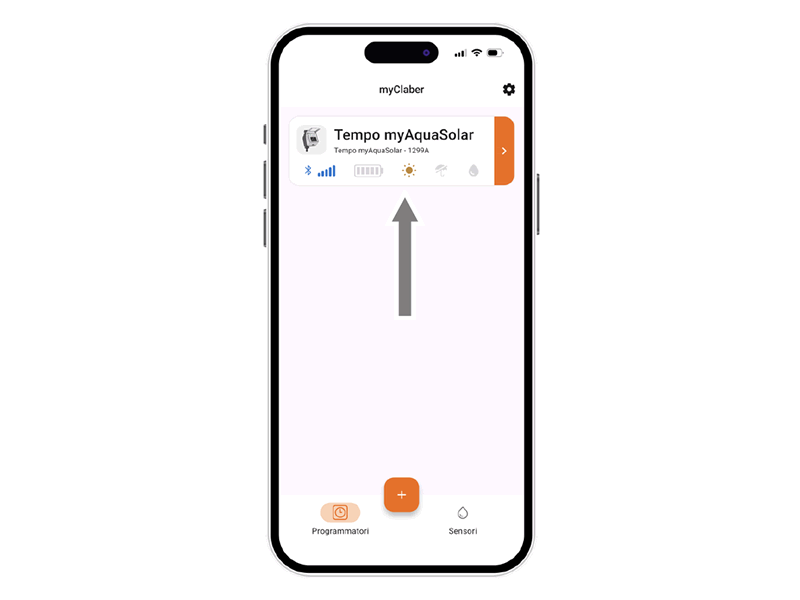
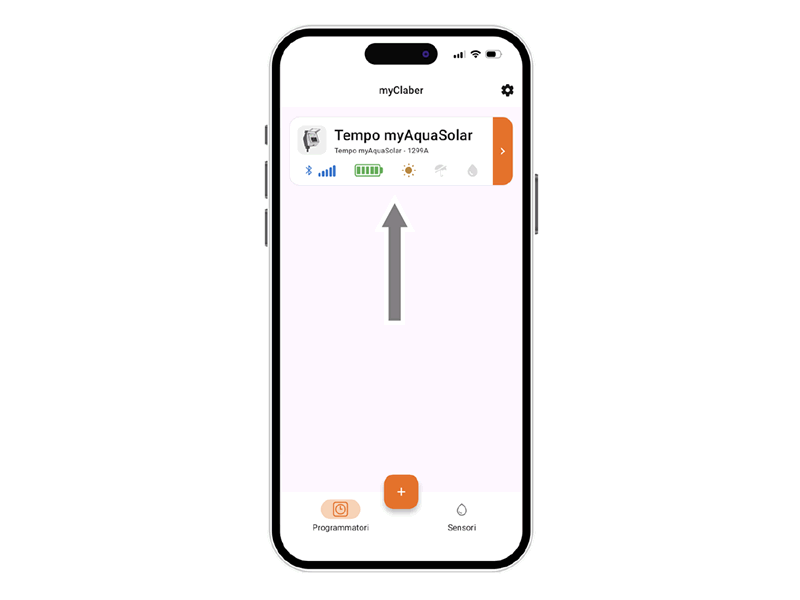
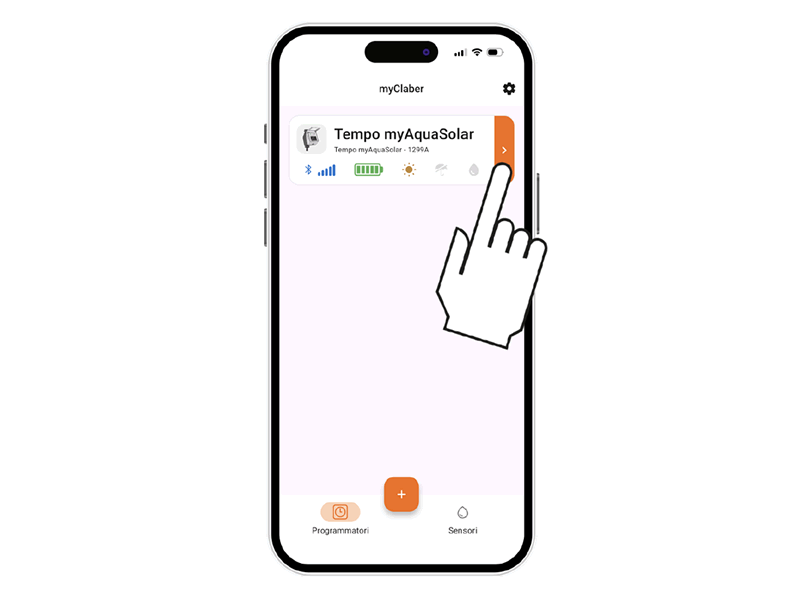
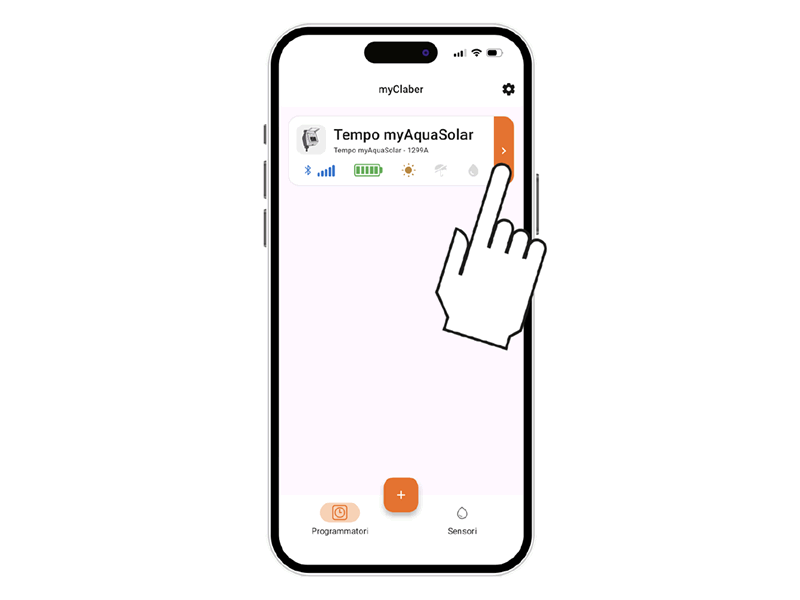
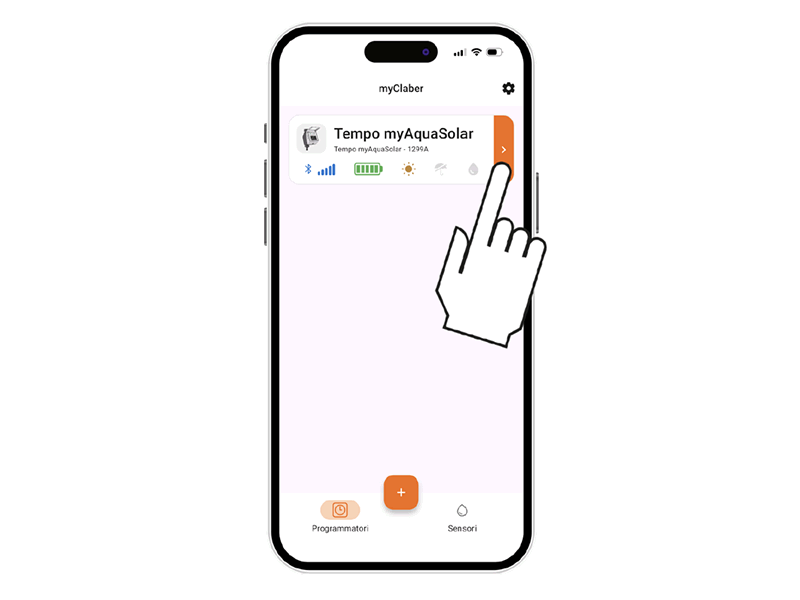
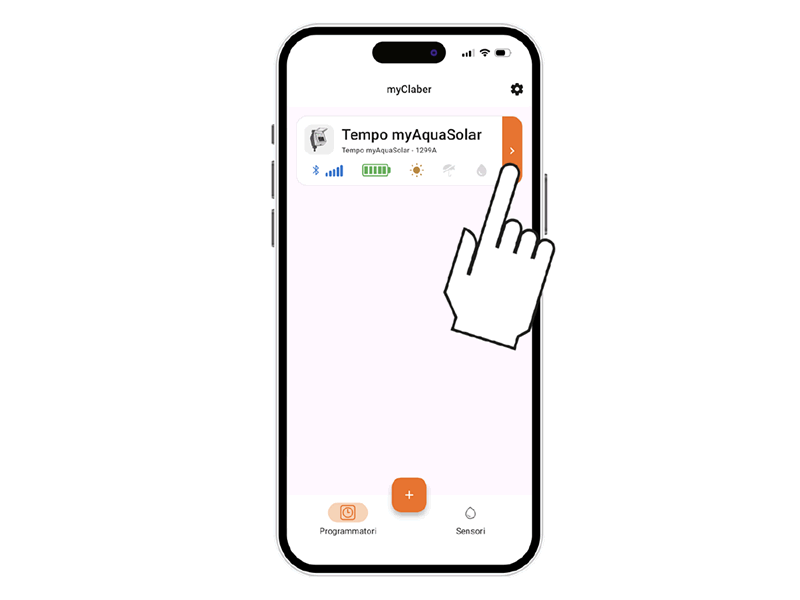
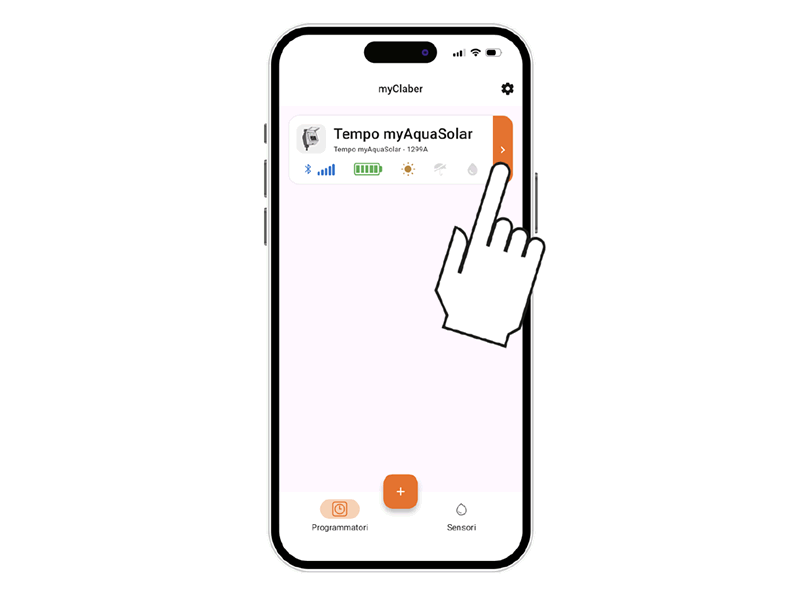
On the main page of the app, the programmer’s card will appear.
Note: the myClaber app can manage up to 8 programmers and 8 rain sensors.
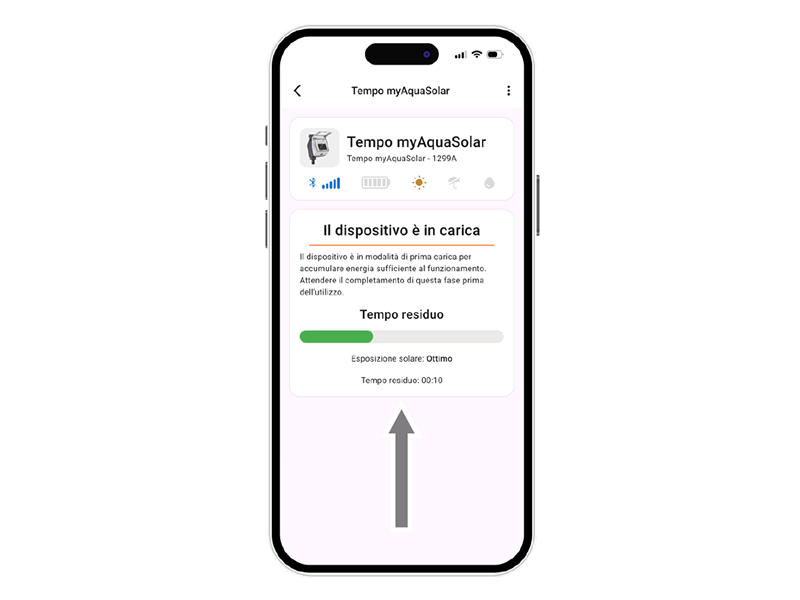
The programmer will be able to irrigate only if it is sufficiently charged.
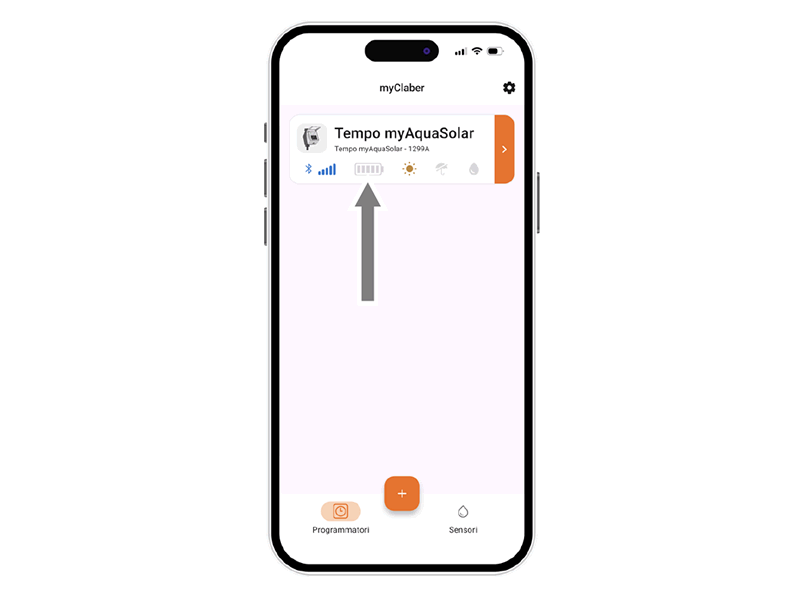
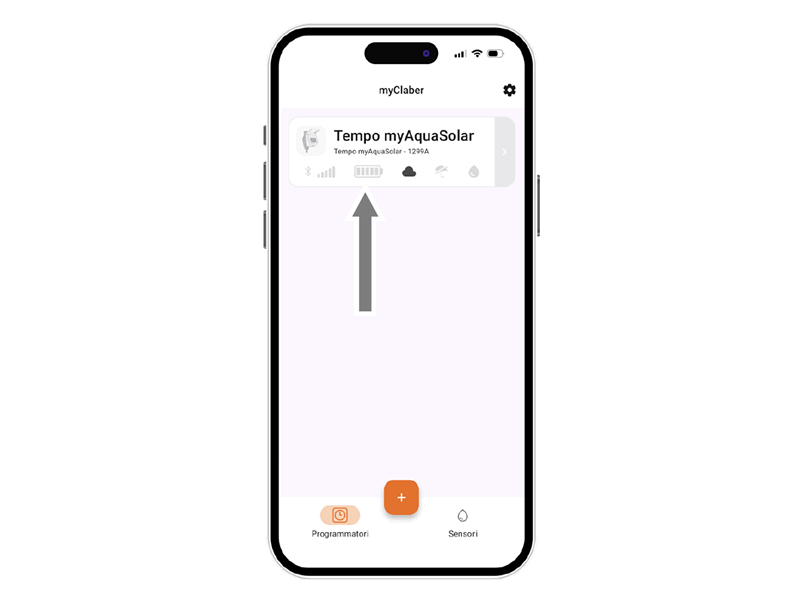
To ensure proper charging before use, check the energy level icon.
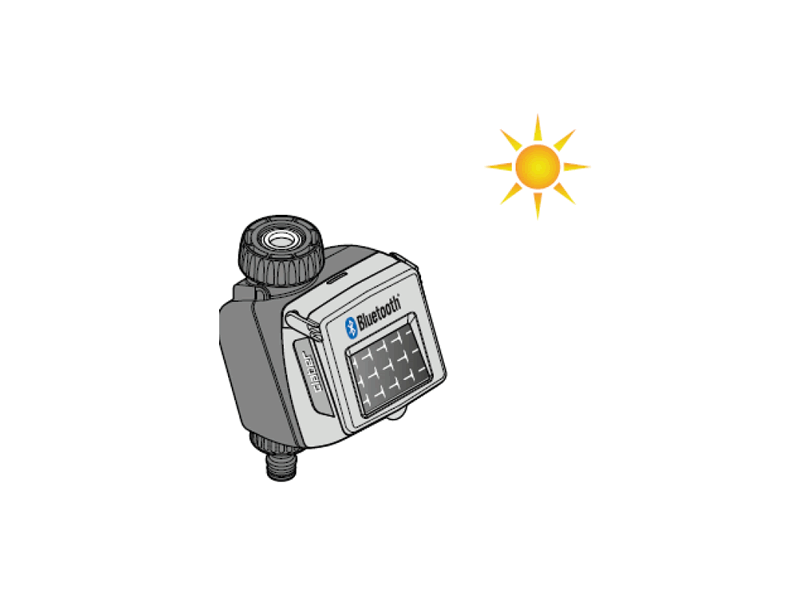
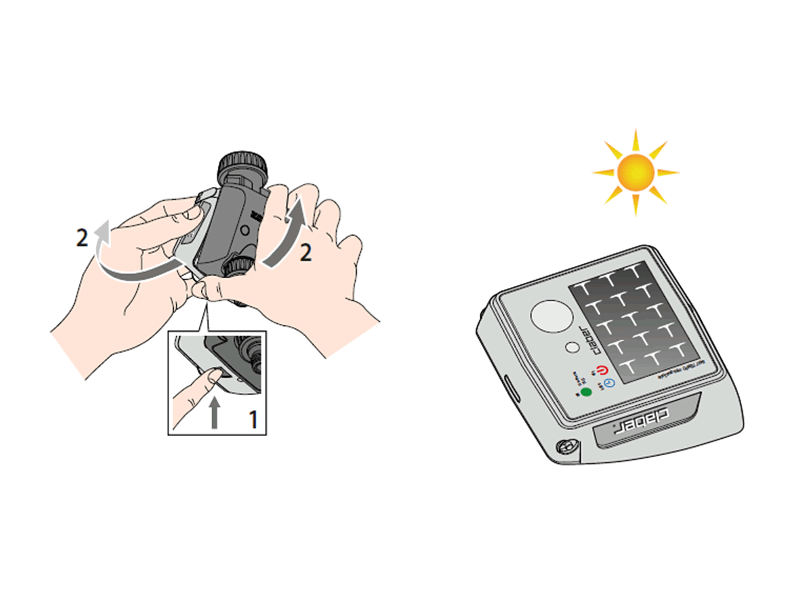
If the energy level icon is grey, place the programmer with the photovoltaic panel exposed to direct sunlight.
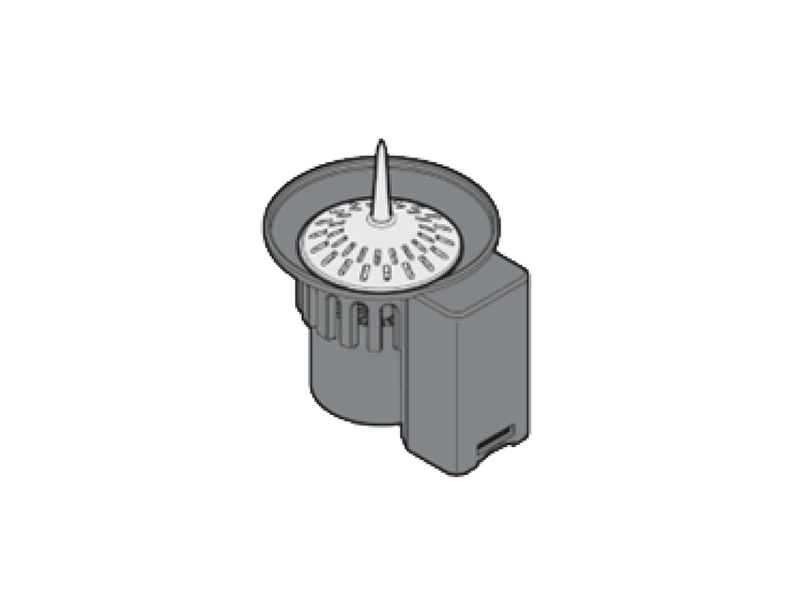
The control module can be detached from the programmer and placed alone in direct sunlight.
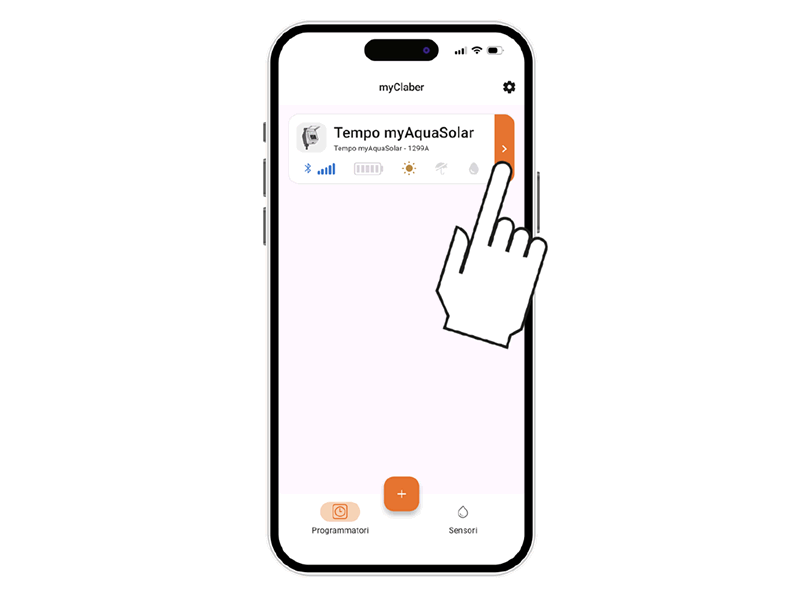
Select the programmer tab in the app.
Information will be provided on the charging status and the remaining time to completion (from 15 to 90 minutes depending on light intensity).
Until the FIRST OR NEW START-UP is completed, it will not be possible to set any irrigation.
Once charging is complete, if it had been detached, reconnect the control module. The programmer can then be used.
Once charging is complete, if it had been detached, reconnect the control module. The programmer can then be used.
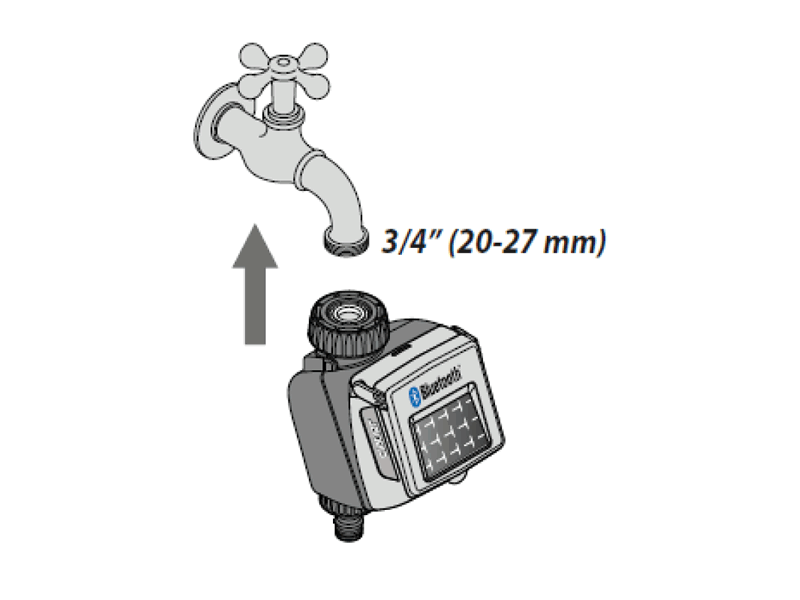
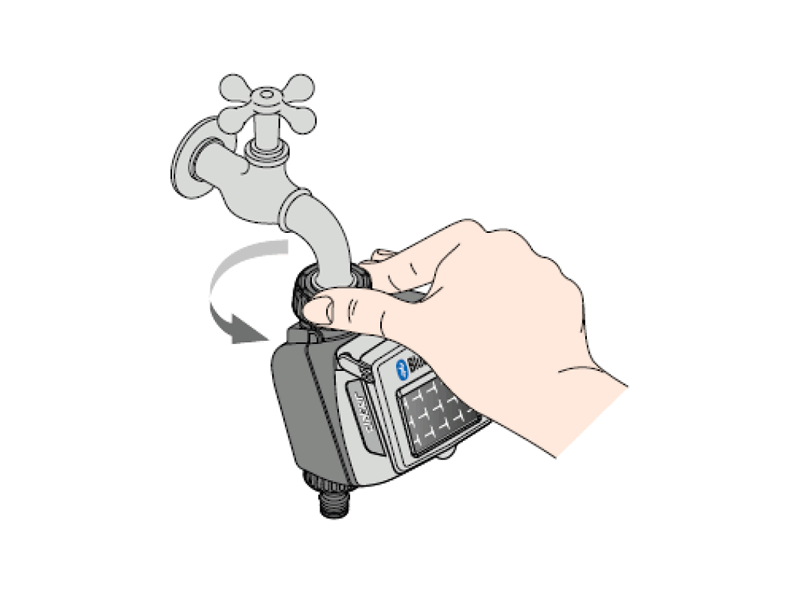
Install the programmer on a domestic tap. Make sure the tap has a 3/4" male threaded outlet (use an adapter if necessary).
Screw the 3/4" female coupling ring onto the tap. Warning: tighten the ring by hand only; do not use pliers or other tools.
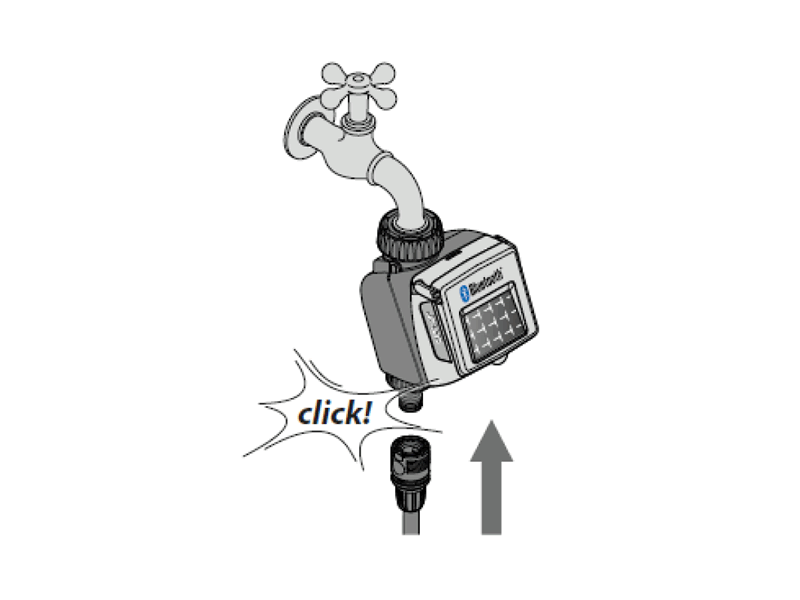
Connect the irrigation line to the programmer outlet using a QuickClick System fitting or a 3/4" threaded fitting.
Do not install the programmer in valve boxes, below ground level or inside buildings. Use mains water or make sure it is filtered. Do not use the programmer with chemicals or liquids other than water. Do not operate the programmer at pressures below 0.5 bar (7.3 psi) or above 10 bar (145 psi).
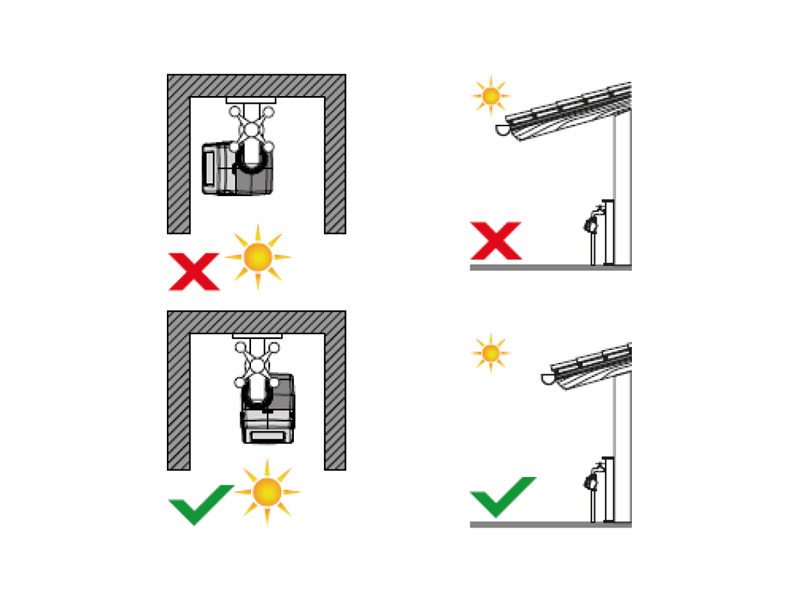
Once the programmer has been installed, make sure that the photovoltaic panel faces the open area from which it receives the greatest amount of light during the day, so as to ensure correct charging.
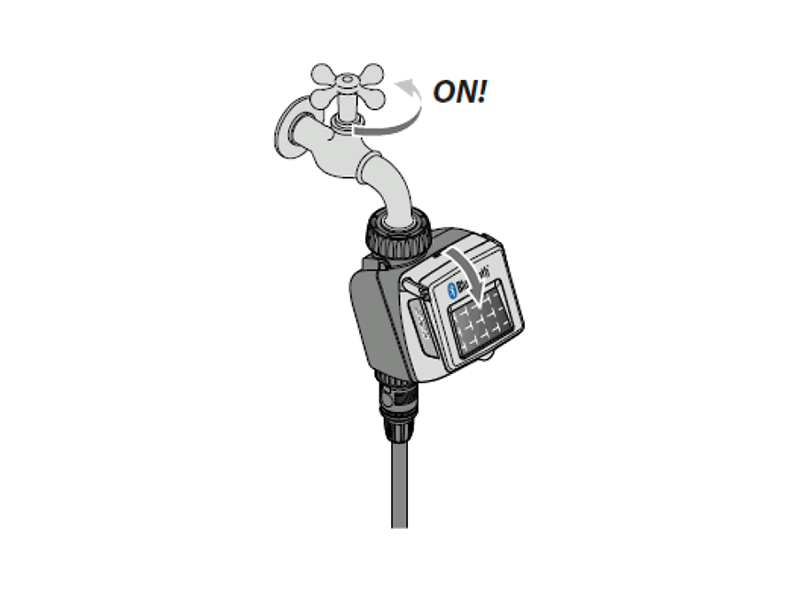
Remember to open the tap and close the programmer cover.
You can connect the programmer to a Rain Sensor BT; the sensor automatically suspends the start of irrigation in case of rain.
Follow the sensor installation here#.
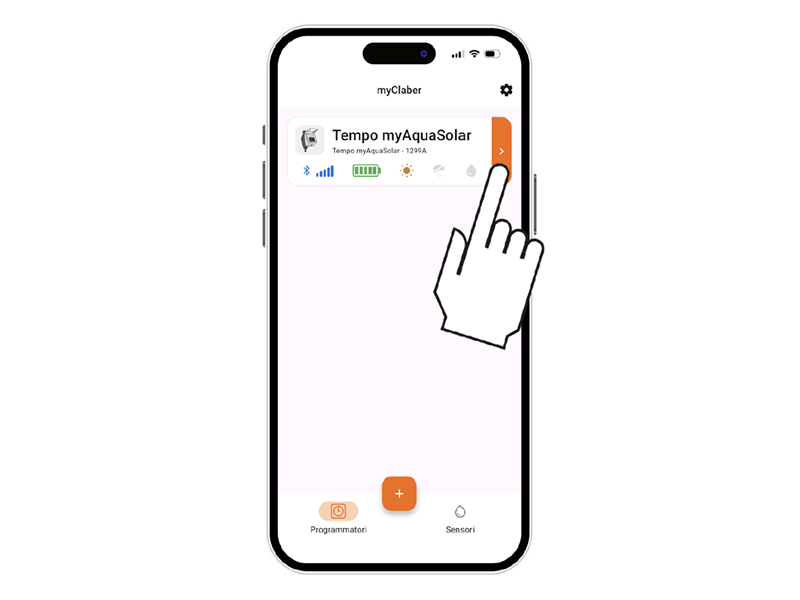
To check the status of the programmer, select the programmer tab in the app.
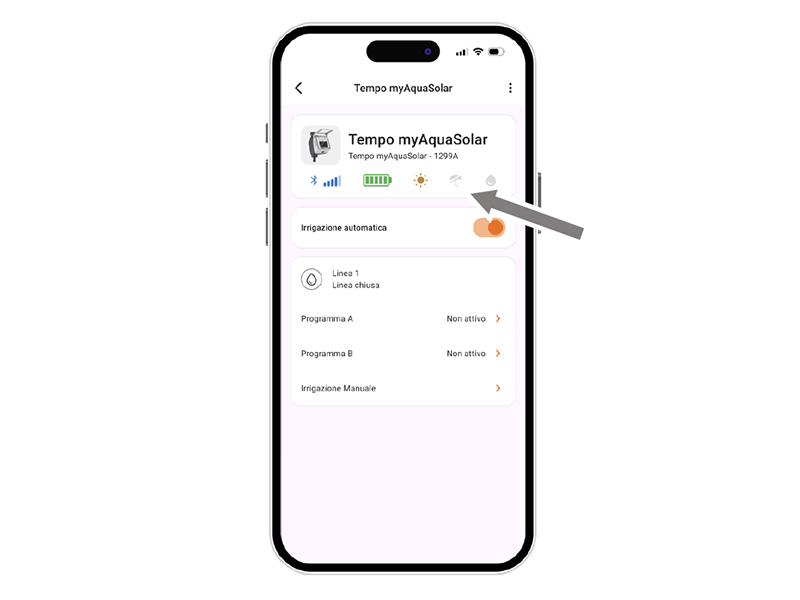
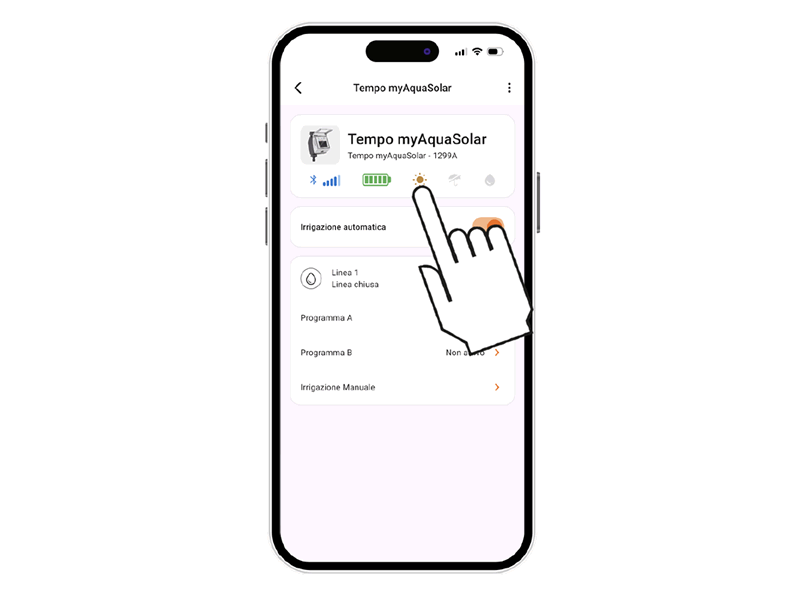
In the upper bar, information about its current status is shown.
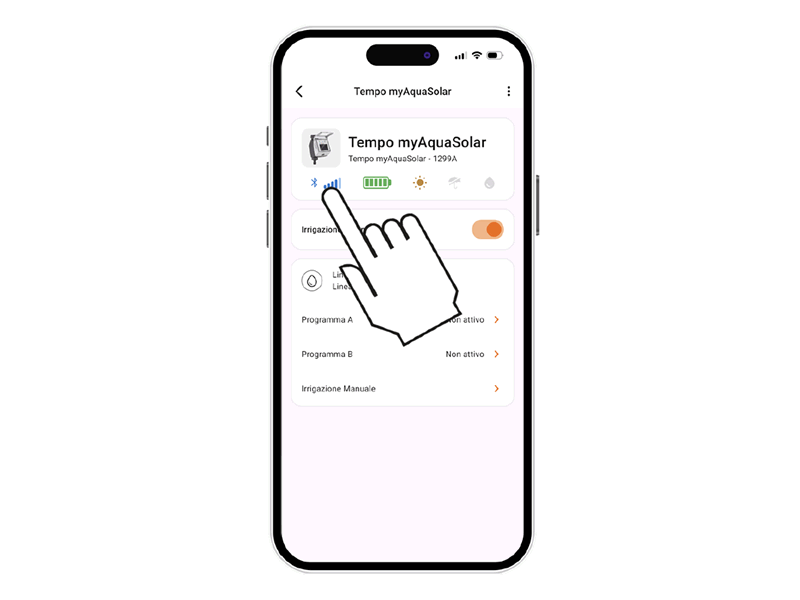
The icons, in order, represent: Bluetooth® signal, energy level, solar irradiation, Rain Sensor and irrigation in progress.
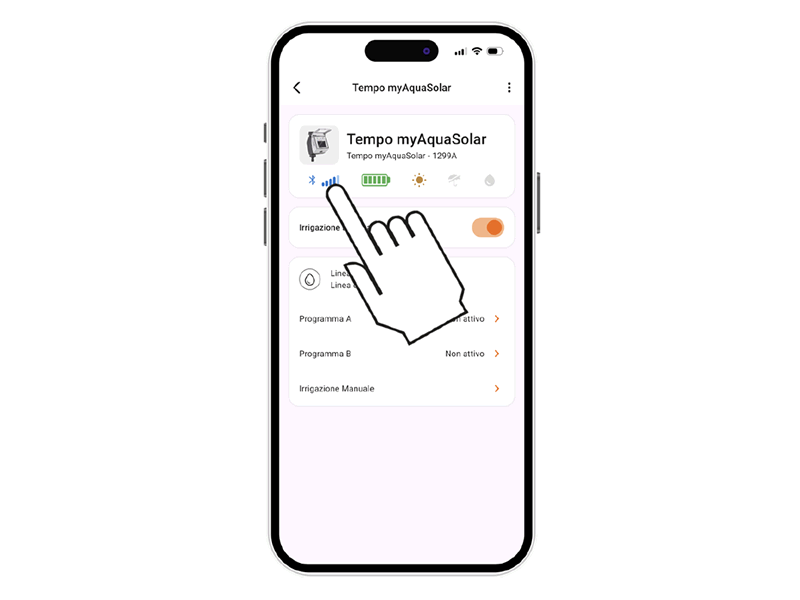
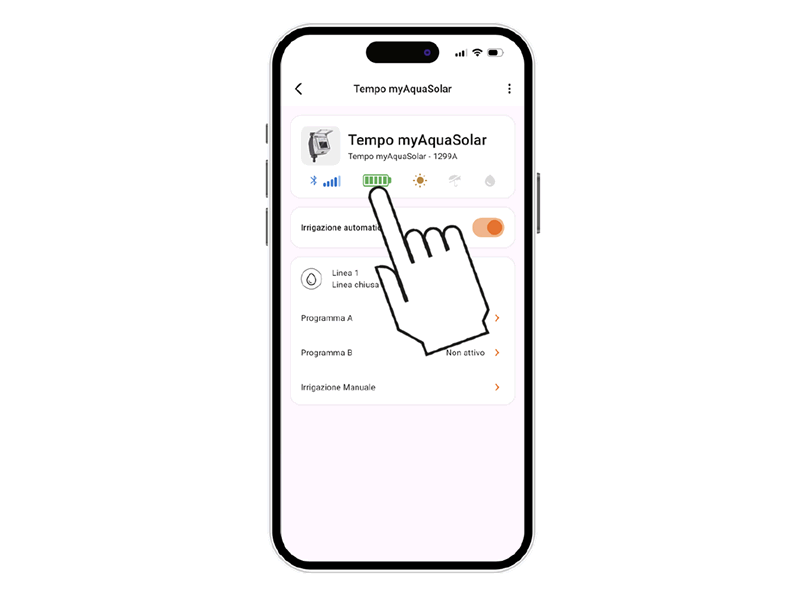
To learn the meaning of each icon, you can select it; an explanatory page will be shown.
By selecting the programmer tab, you can view its status information through the top bar.
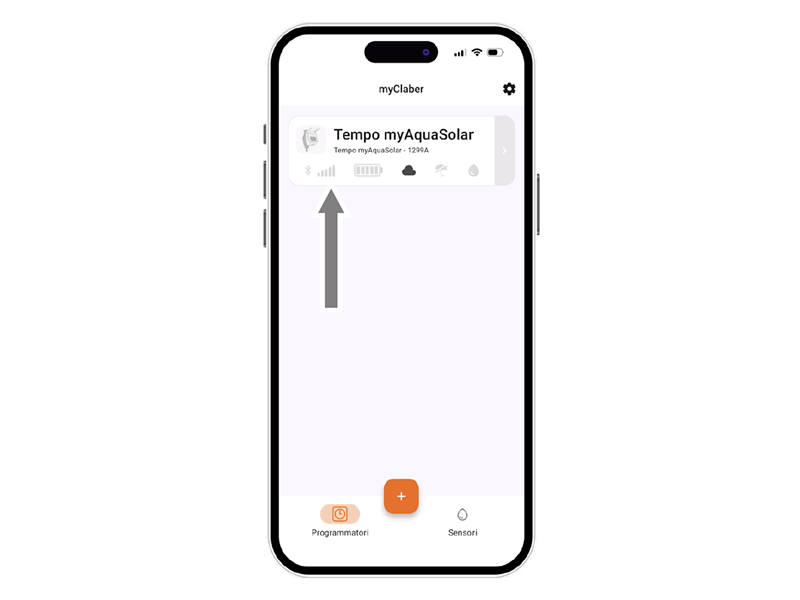
The Bluetooth® signal icon shows whether the programmer is reachable (blue) or not (grey). In this case, move closer to the device with your smartphone.
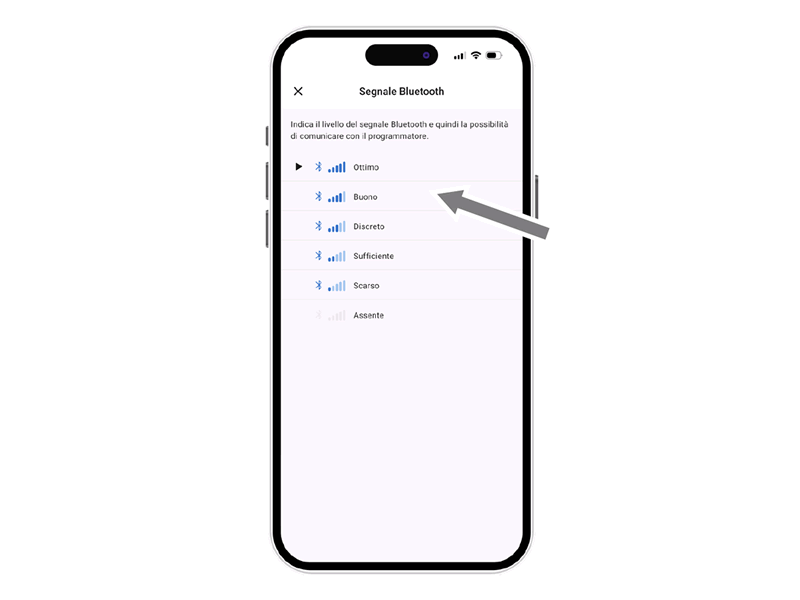
To view its meaning, you can select the icon and an explanatory page will appear.
Bluetooth® signal quality.
If the programmer is not reachable, you may need to move closer with your smartphone.
If the FIRST OR NEW START-UP has not been completed, the programmer may not be sufficiently illuminated or may be discharged.
If the condition persists and during the ASSOCIATION you entered the PIN manually instead of using the QRCode, an incorrect code may have been entered. Delete the programmer and retry the ASSOCIATION.
The energy level visible on the programmer page in the app is particularly important.
The energy level is also displayed on the top bar after opening the programmer page.
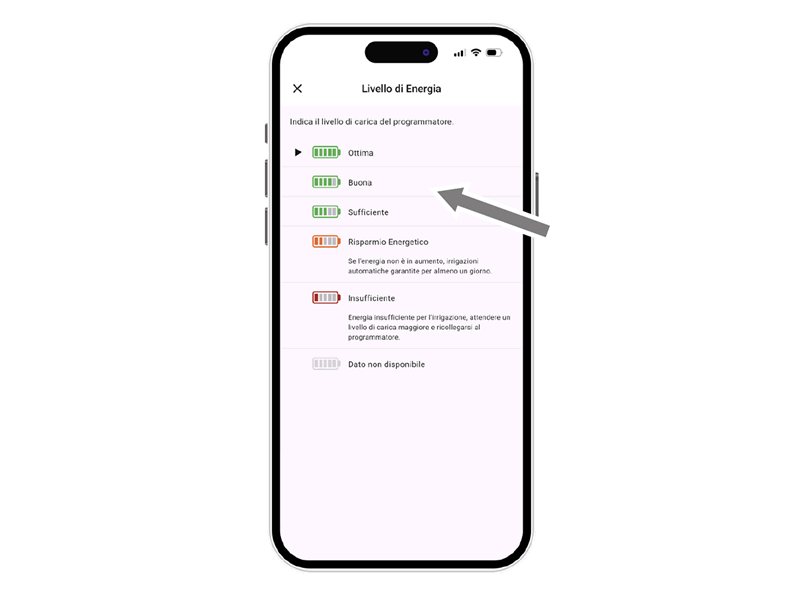
Selecting the energy level icon provides access to additional information.
If the energy level icon is grey, wait for the charging to be completed (FIRST OR NEW START-UP).
There are 5 energy levels.
If the energy level enters energy saving mode (yellow icon), the programmer will still ensure automatic irrigation for at least 1 day. With insufficient energy (red icon), all functions will be disabled while date and time remain stored for about 16 hours before shutdown.
If the programmer fully discharges and turns off, it may turn on again after normal exposure to sunlight. In case of shutdown, the programmer will lose the date and time settings: irrigation may start abnormally.
By selecting the programmer tab, you can view its status information through the top bar.
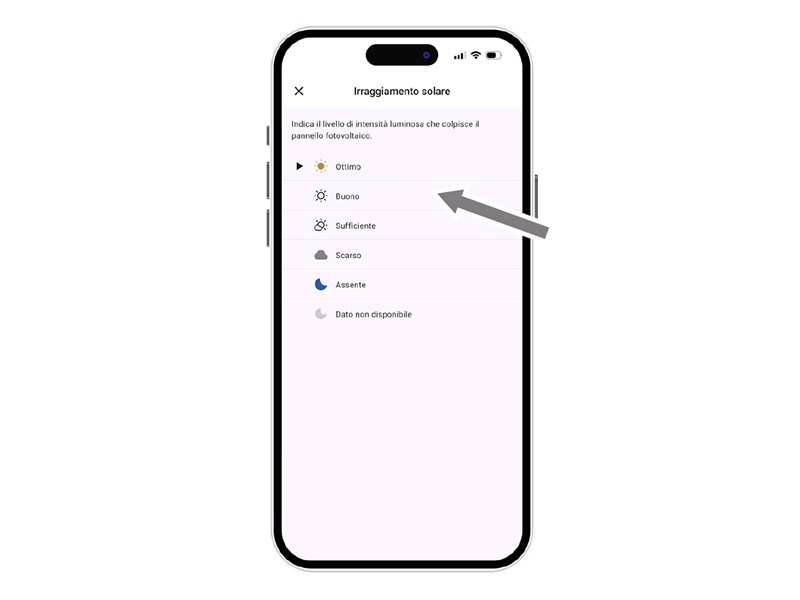
The solar irradiation status can be viewed on the top bar.
By selecting it, an explanatory page will be shown.
Details on the quality of solar irradiation.
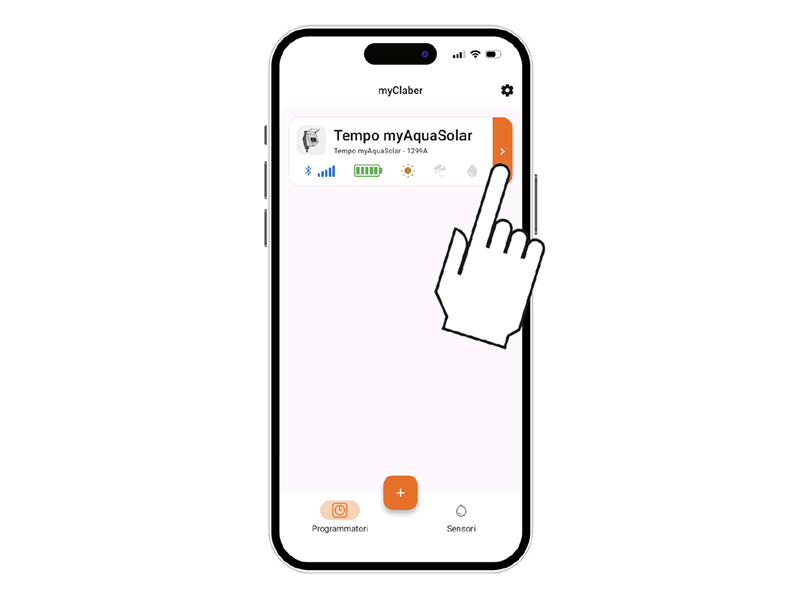
By selecting the programmer tab, you can view its status information through the top bar.
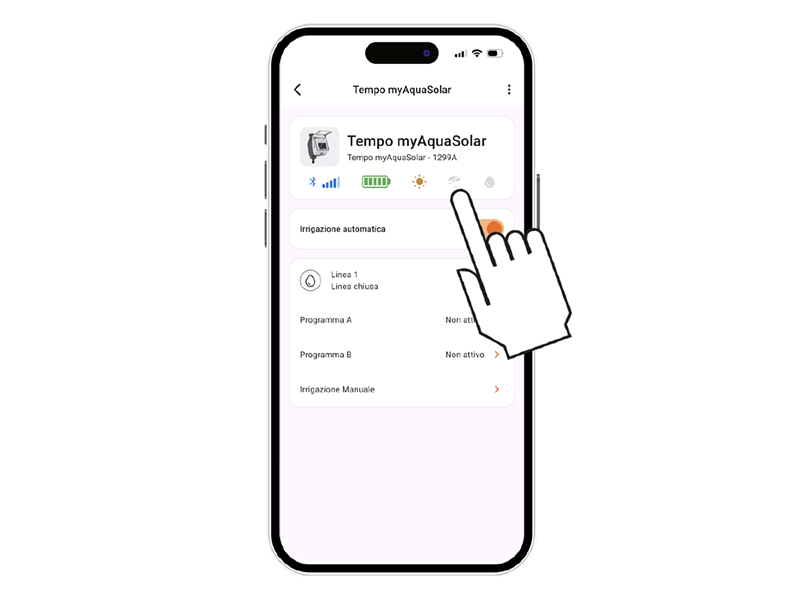
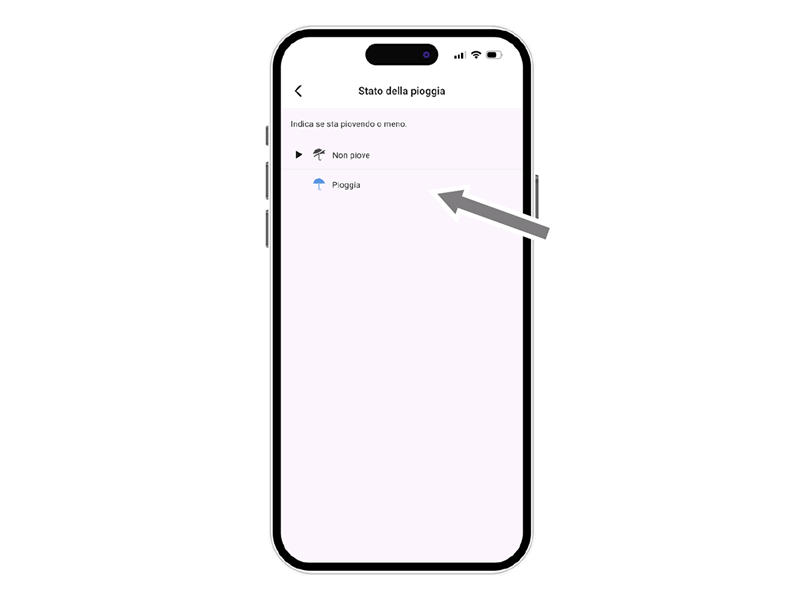
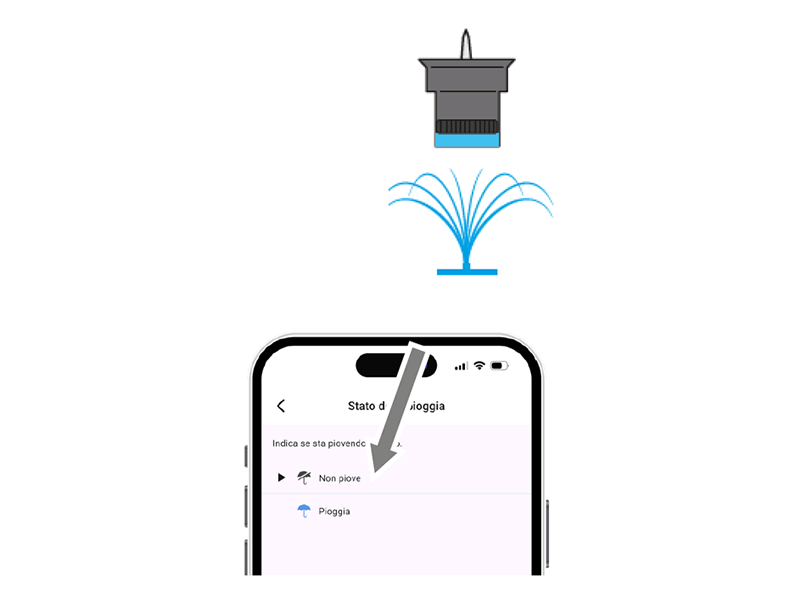
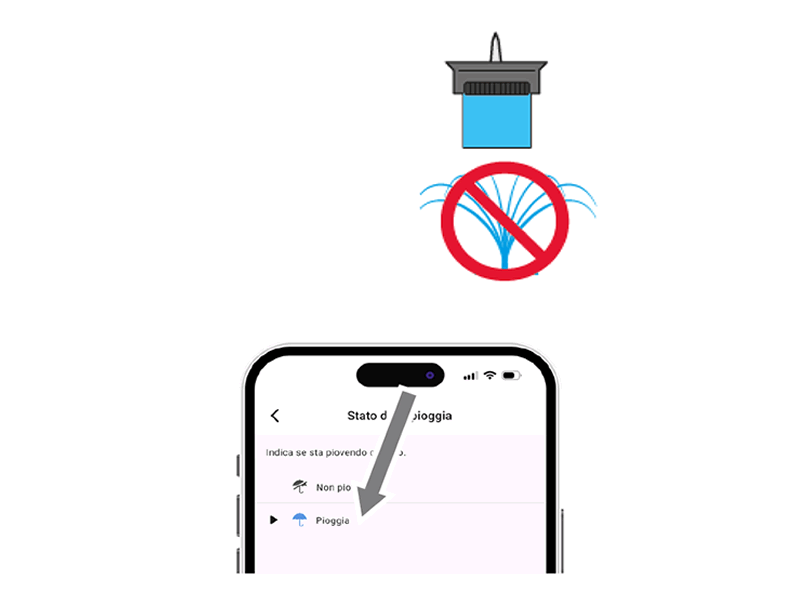
The rain sensor status can be viewed on the top bar, through the umbrella icon.
The sensor communicates its status to the programmer in one-minute intervals.
The light-blue umbrella icon indicates that the rain sensor is full and automatic irrigation will not occur.
If the icon is grey, the rain sensor is empty and automatic irrigation will occur as programmed.
By selecting the programmer tab, you can view its status information through the top bar.
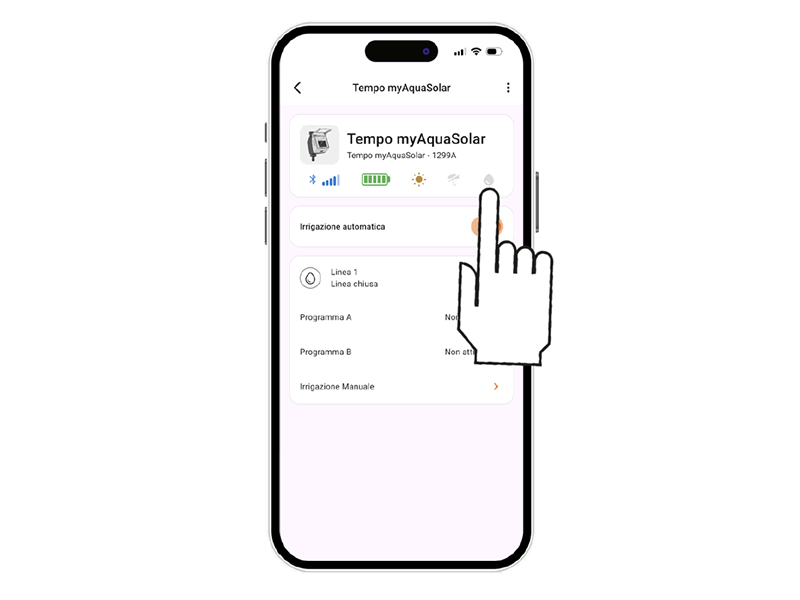
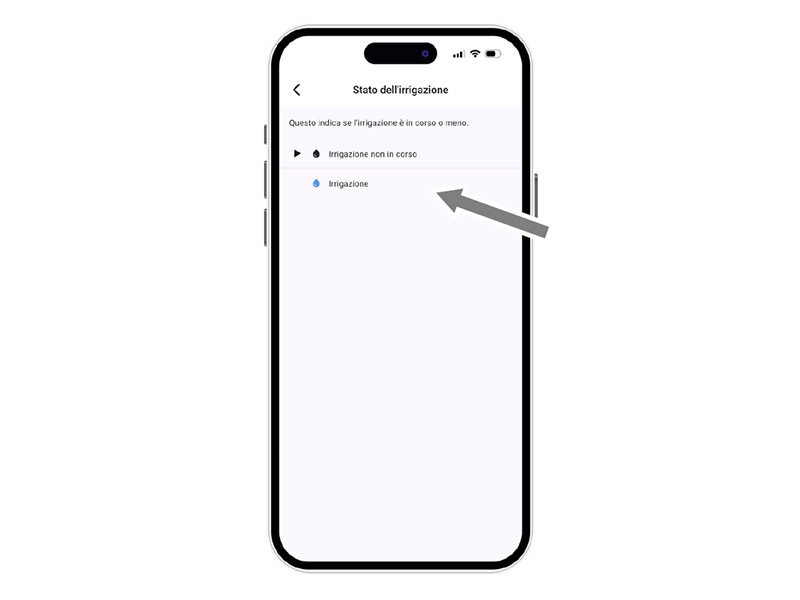
The irrigation status can be viewed on the top bar.
If irrigation is in progress—automatic or manual—it is displayed with the drop icon: blue if irrigation is active, grey if it is not.
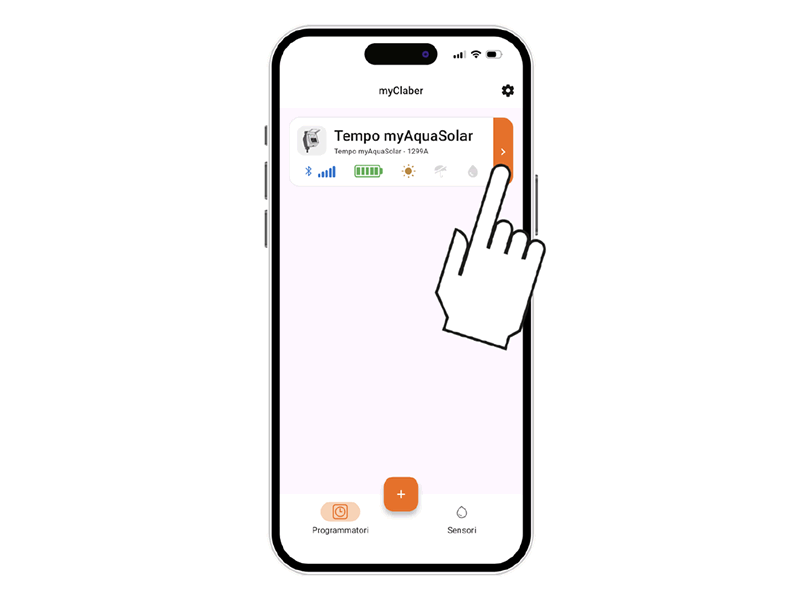
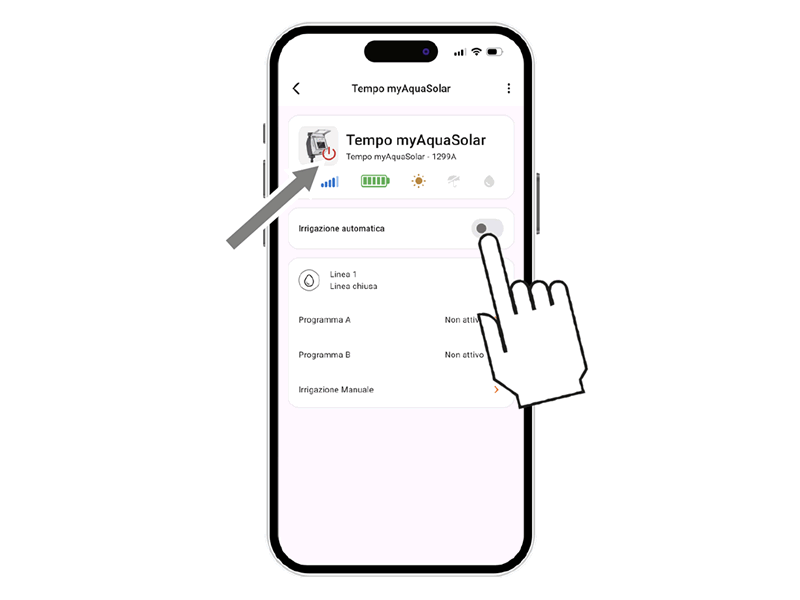
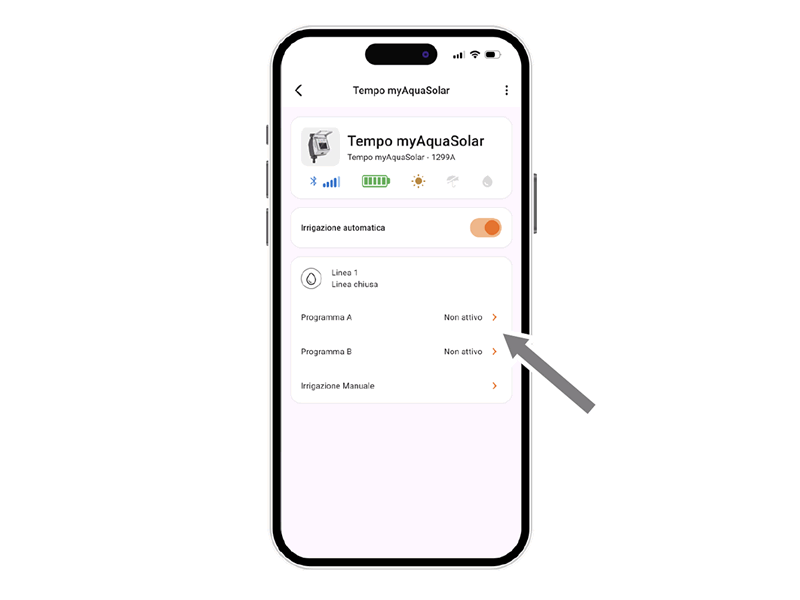
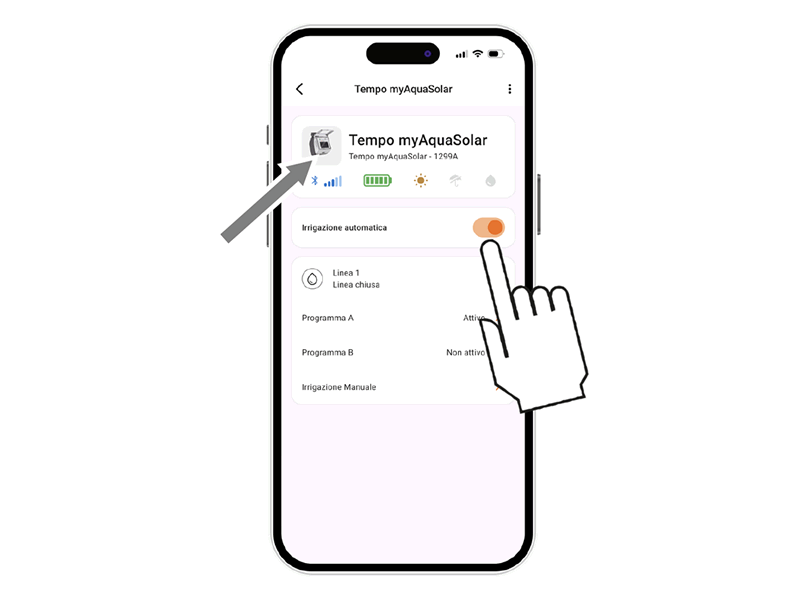
To activate or deactivate the automatic irrigation of a programmer, press its product card.
Use the Automatic Irrigation switch. If automatic irrigation is not active, a red symbol will appear on the programmer image.
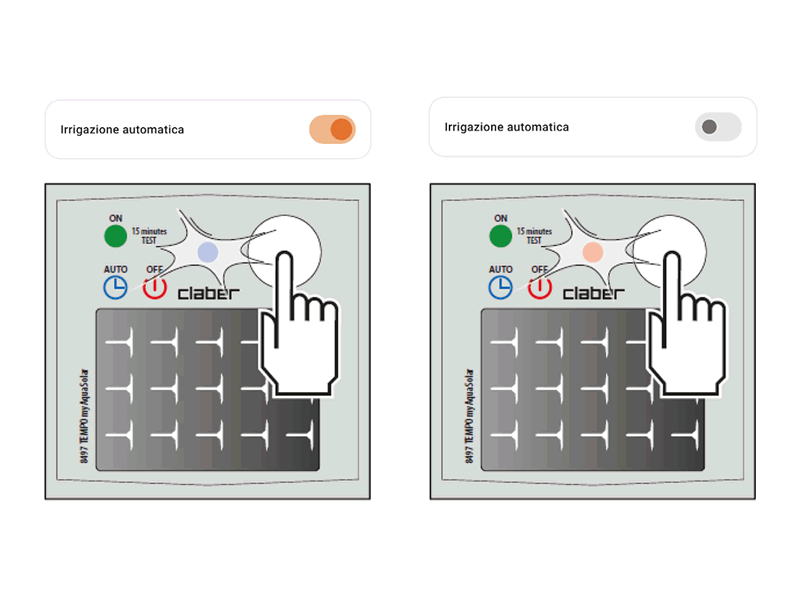
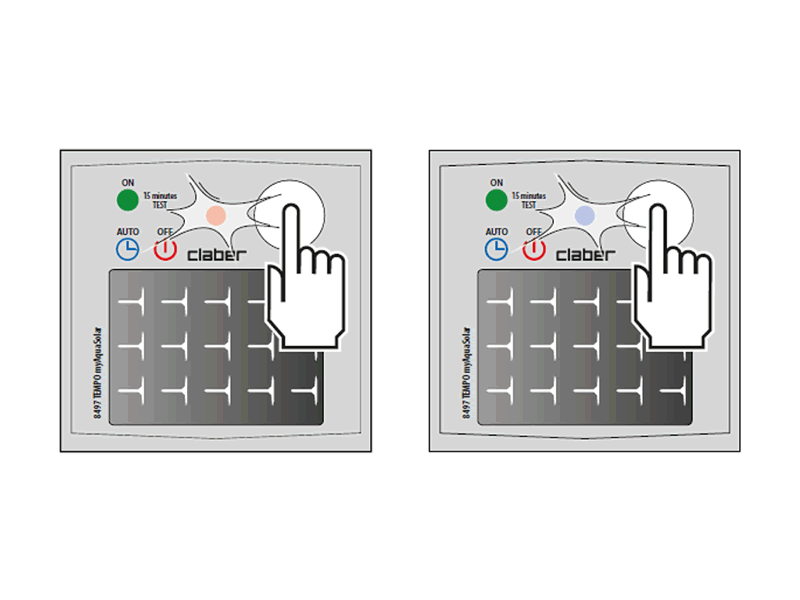
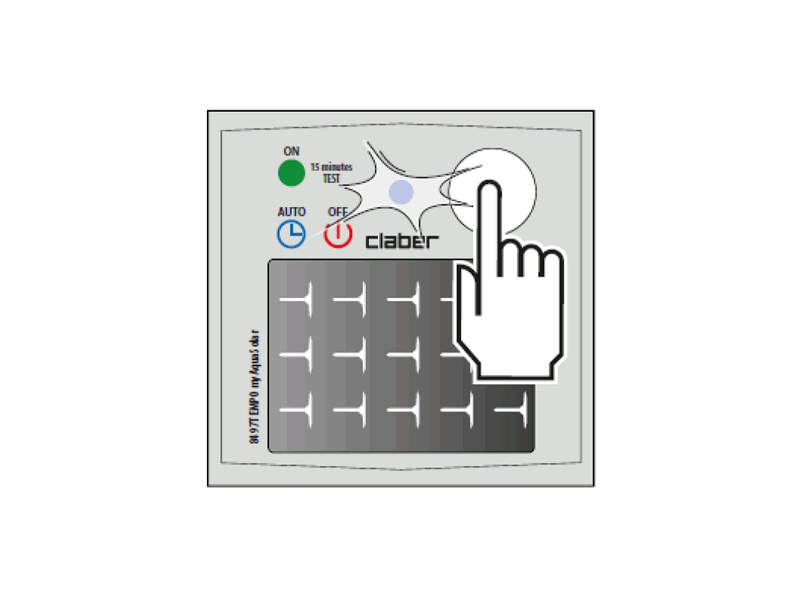
Alternatively, you can also use the button on the programmer. Press the programmer button once to display its status.
The active automatic irrigation state is indicated by a blue flashing LED; the inactive state by a red flashing LED.
By pressing the button twice, you will change the state of automatic irrigation: active → inactive or inactive → active.
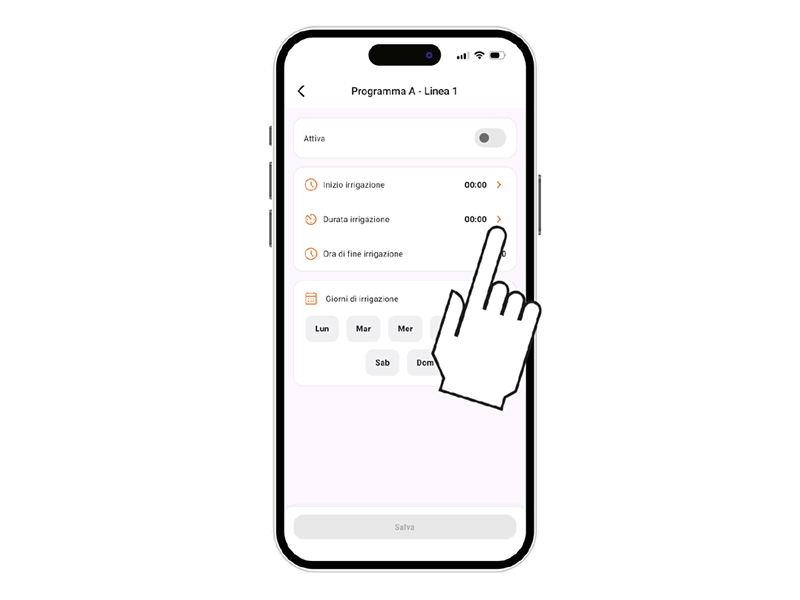
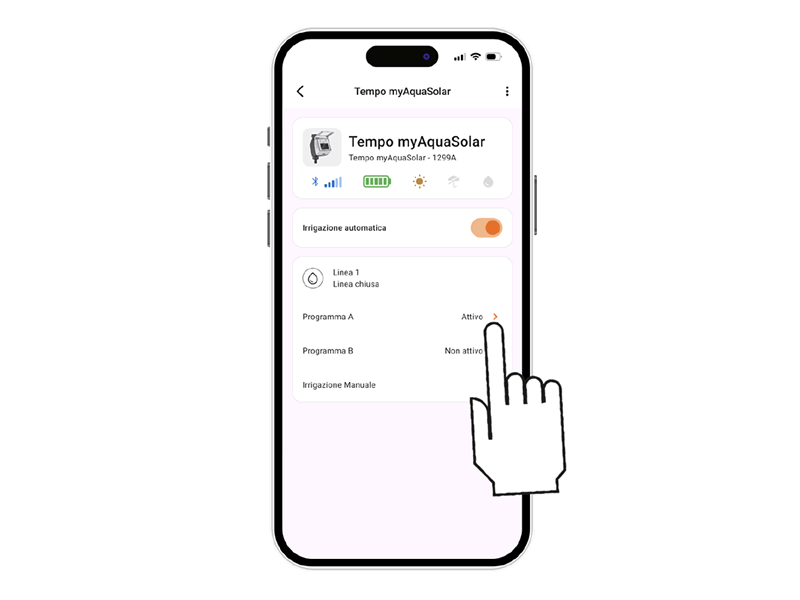
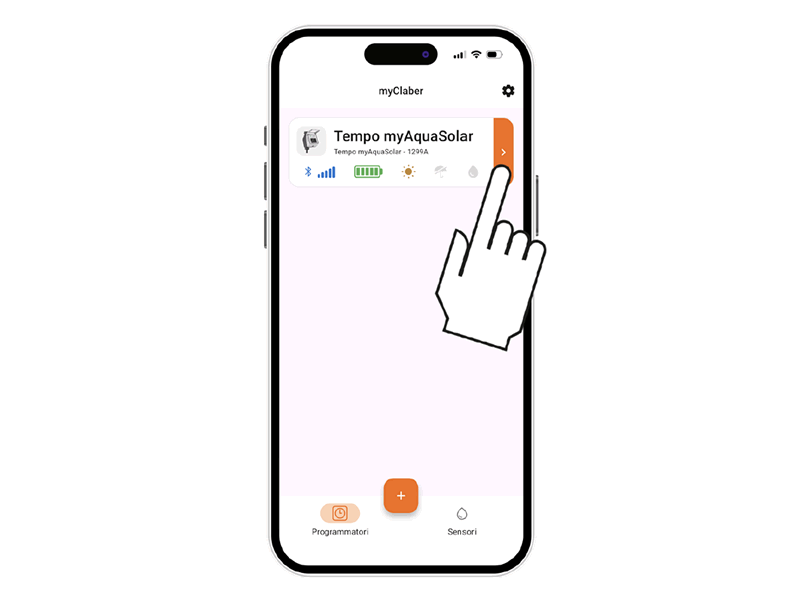
By pressing the programmer card, you can start its programming.
myAquaSolar time offers 2 irrigation programs, A and B. Select the desired one.
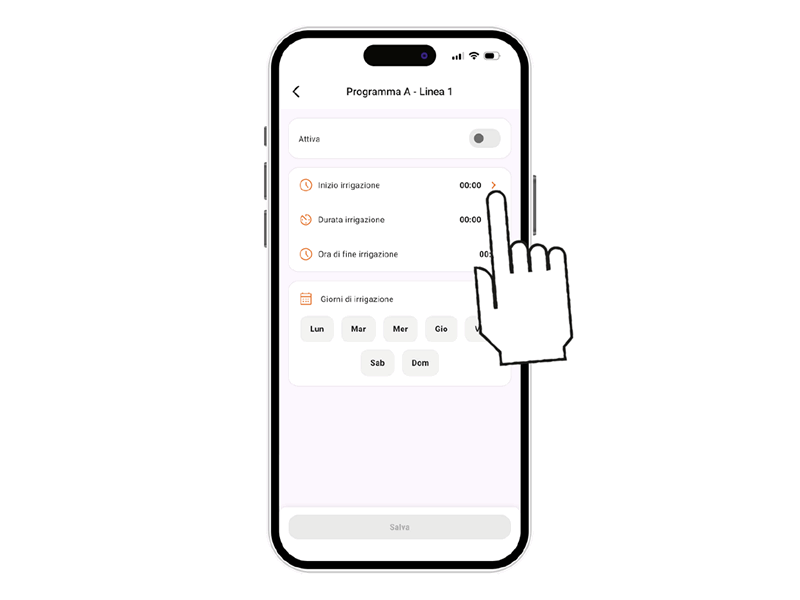
Press Irrigation start.
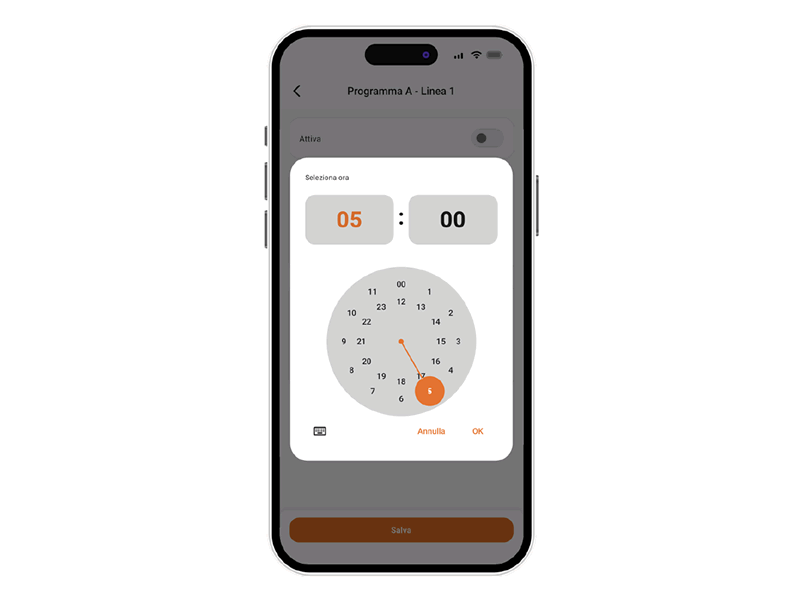
Rotate the hour and minute digits until reaching the desired irrigation start time and confirm.
Alternatively, with the keyboard symbol, you can directly enter hour and minute values.
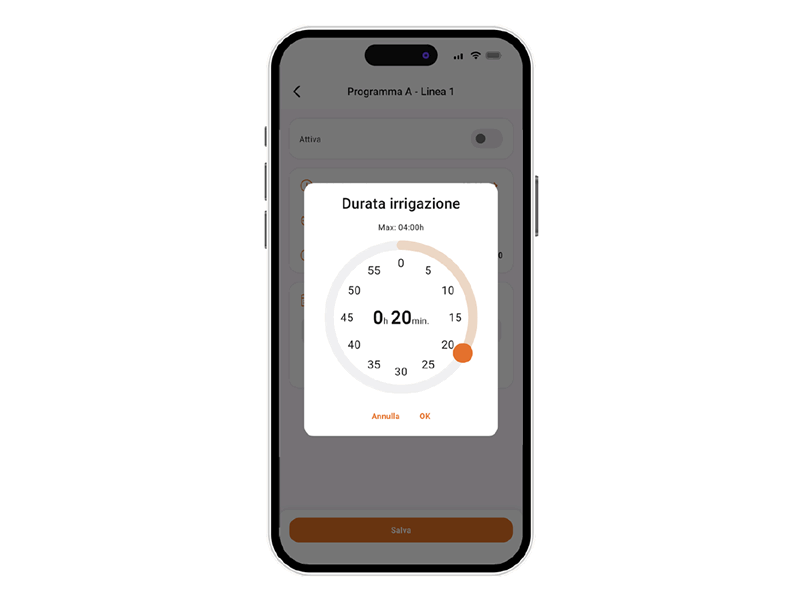
Press Irrigation duration.
Rotate the minute digits until reaching the desired duration and confirm. Irrigation can be set from 1 minute to 4 hours.
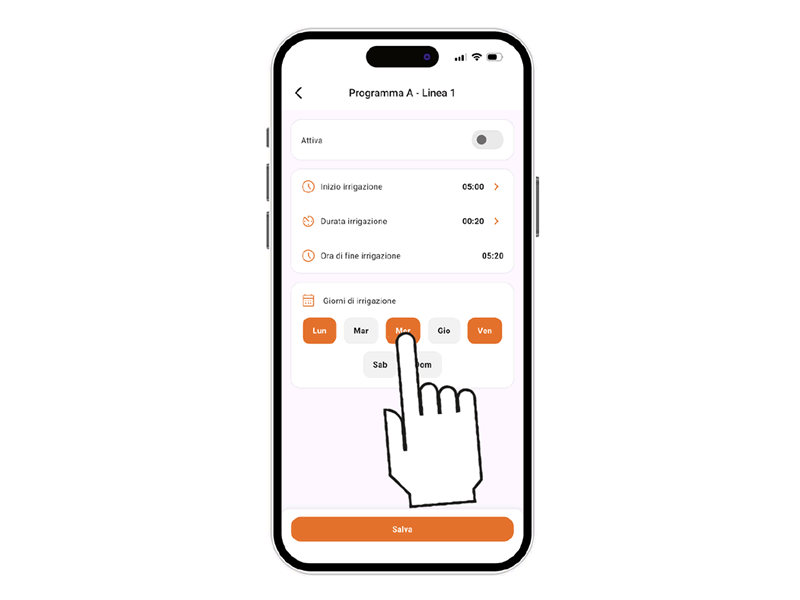
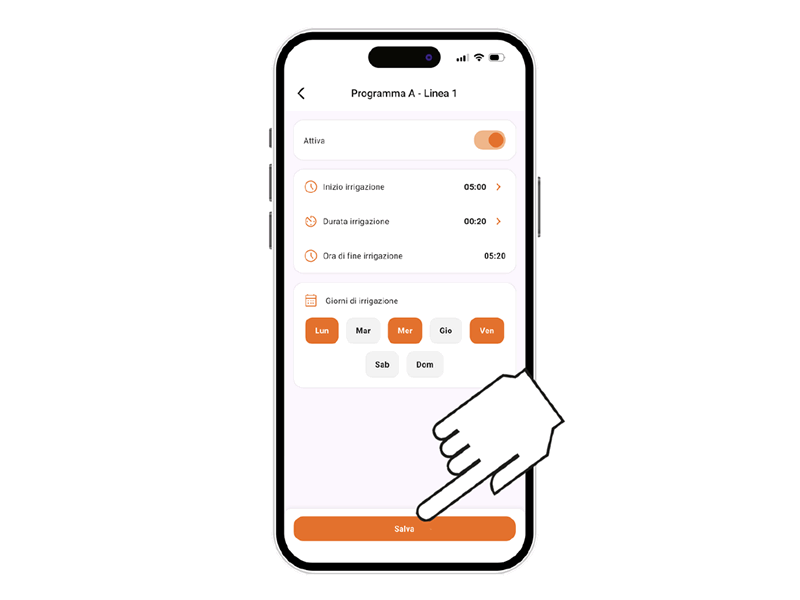
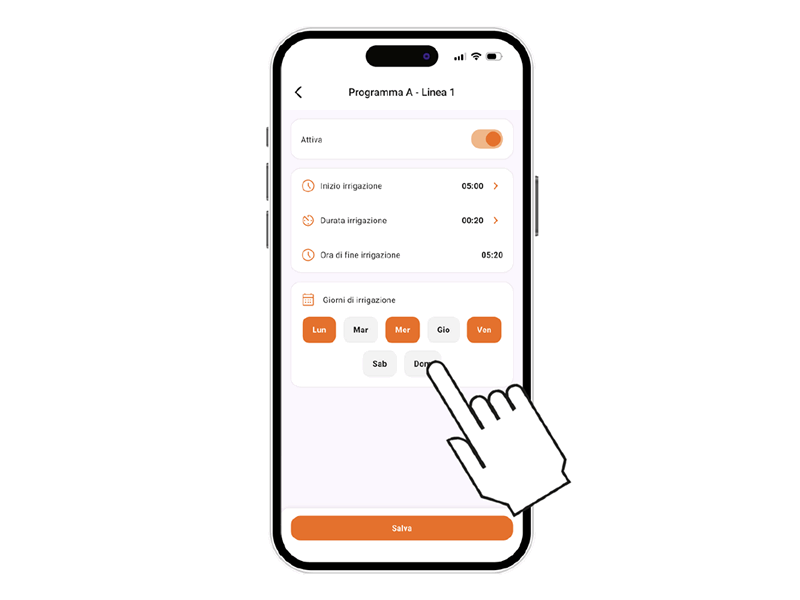
Then select the days of the week on which you want irrigation. Irrigation will occur on the days highlighted in orange.
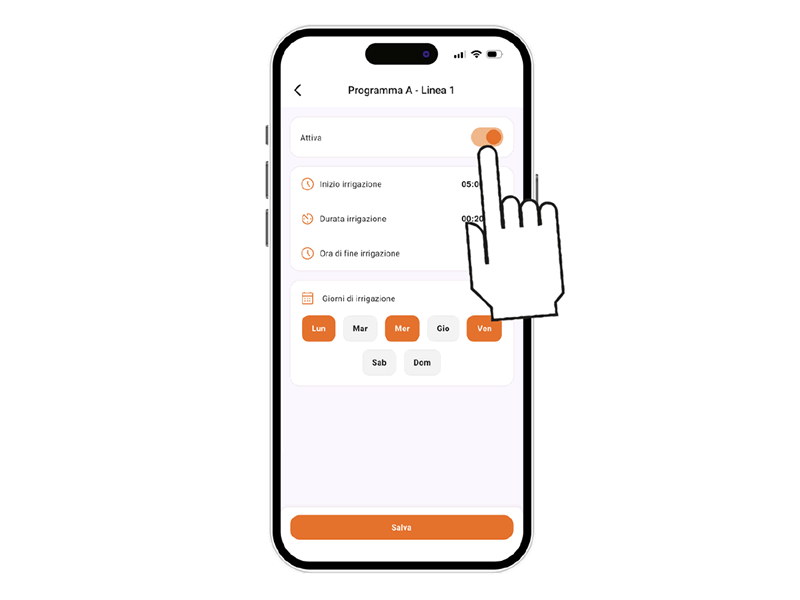
To activate the program immediately, ensure that the program switch is set to Active.
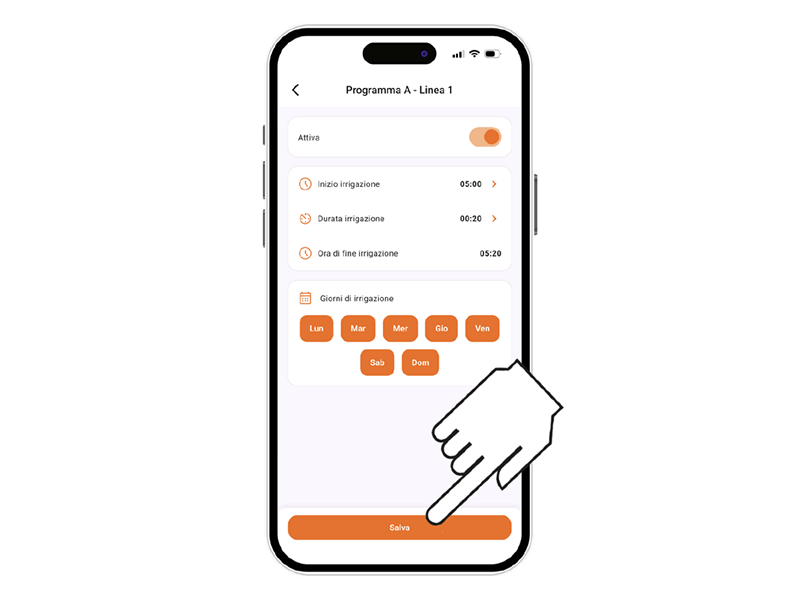
To confirm the entered settings, press Save.Warning:
programs cannot overlap.
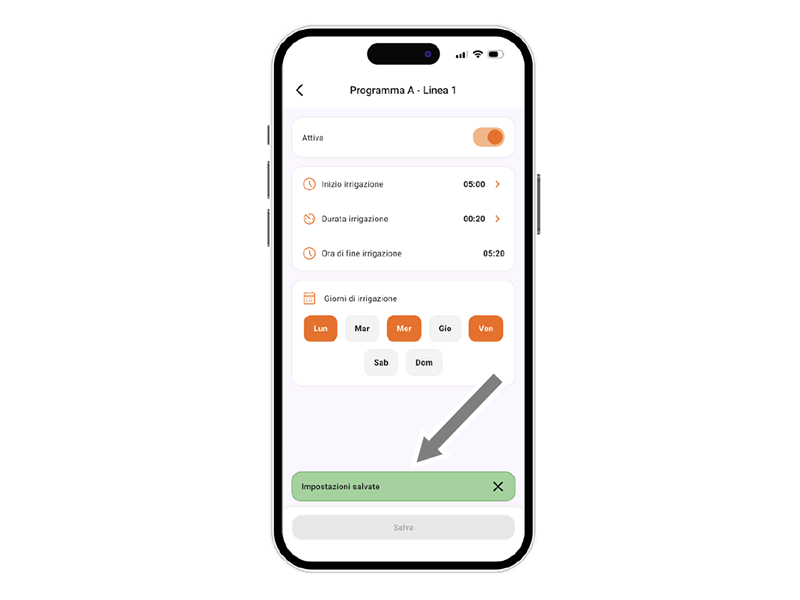
Once saving is completed, a confirmation is shown.
For scheduled irrigations to occur, ensure that the automatic irrigation switch is ON.
From the programmer card, select the program you want to modify.
Change the desired settings.
To apply the changes, press Save.
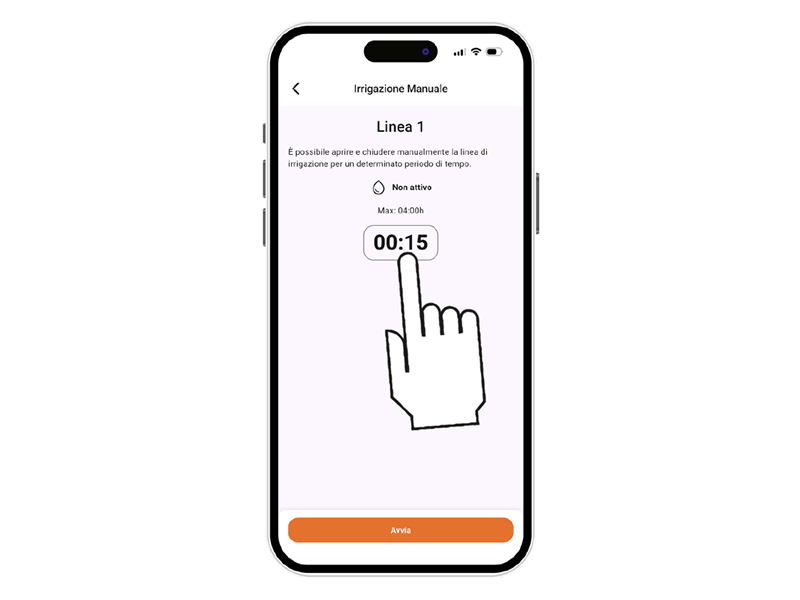
Press the programmer card.
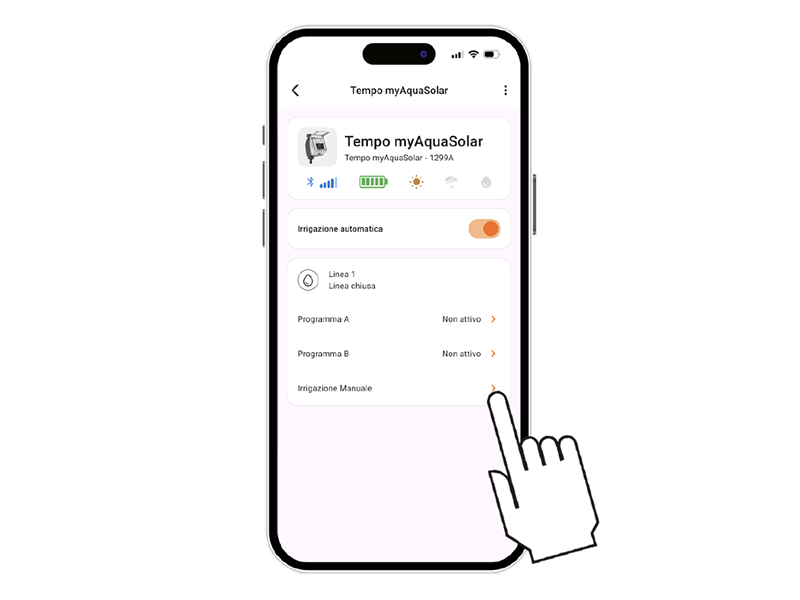
Select the Manual irrigation option.
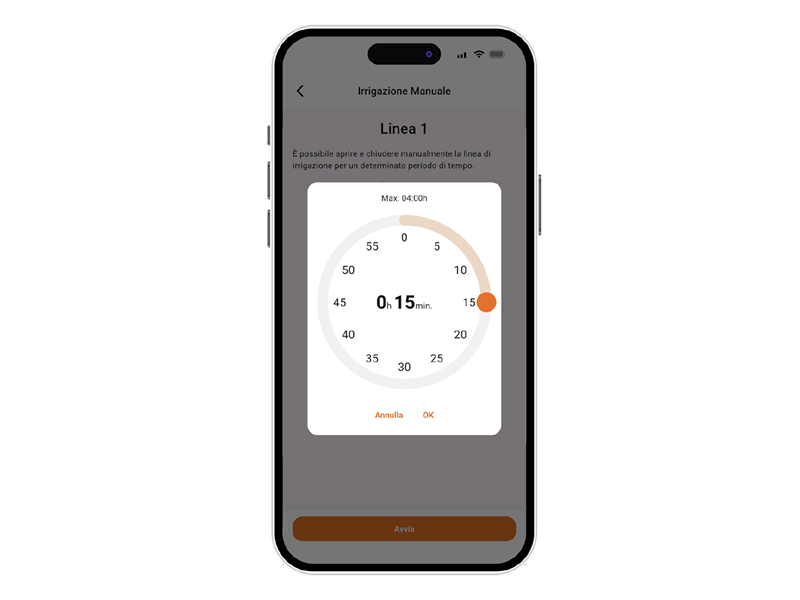
To set the irrigation duration, press the irrigation duration indicator.
Rotate the minute digits until the desired duration is reached and confirm. Irrigation can be set from 1 minute to 4 hours.
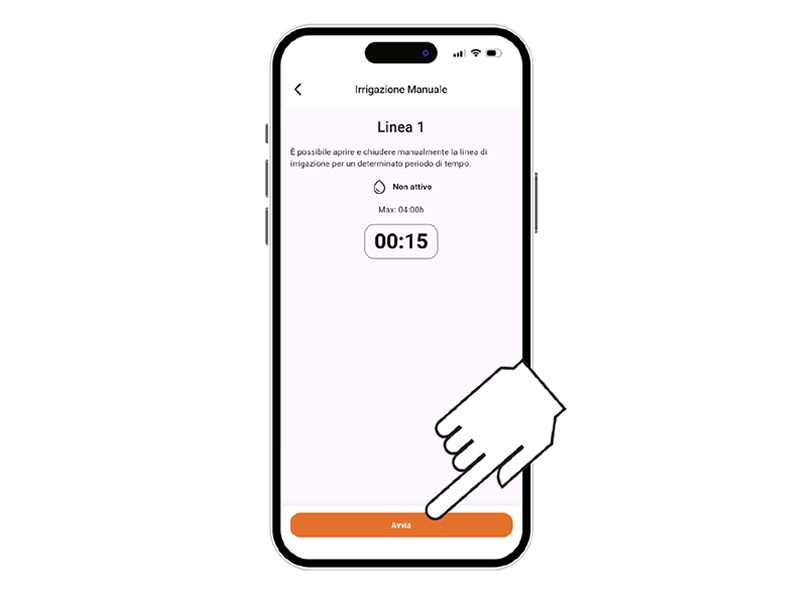
To start irrigation, press START.
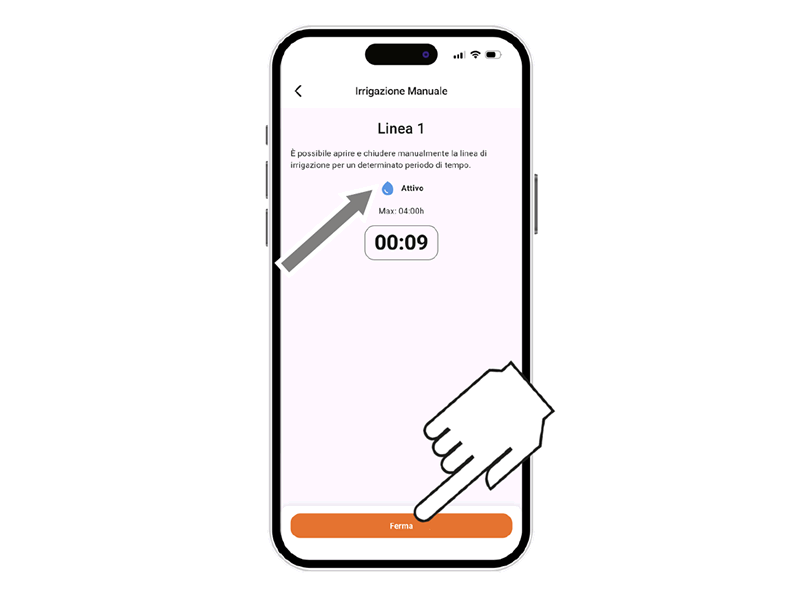
It is possible to stop manual irrigation before completion by pressing STOP.
If manual irrigation finishes normally, the programmer returns to active automatic irrigation. If an automatic irrigation is scheduled during manual irrigation, it will not occur.
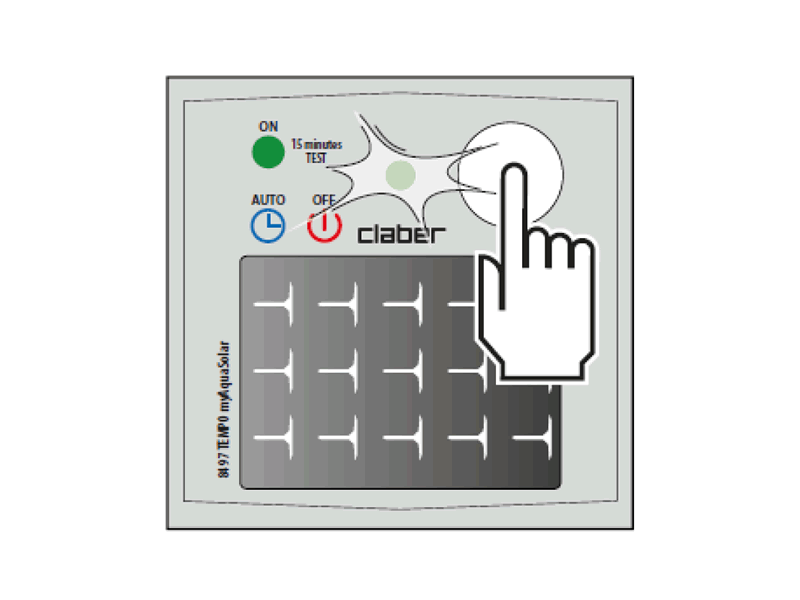
To activate manual irrigation from the programmer, press the Tempo myAquaSolar button repeatedly until the LED flashes green. In this case, a 15-minute manual irrigation will start.
To stop it before completion, press the programmer button repeatedly to set the desired state: active automatic irrigation (blue flashing LED) or inactive automatic irrigation (red flashing LED).
If manual irrigation completes normally, the programmer returns to the active automatic irrigation state. If an automatic irrigation is scheduled during manual irrigation, it will not occur.
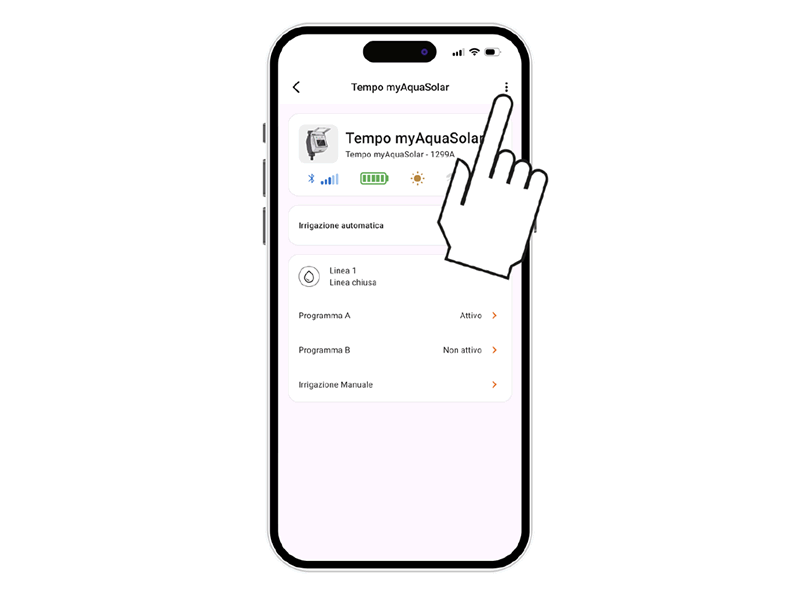
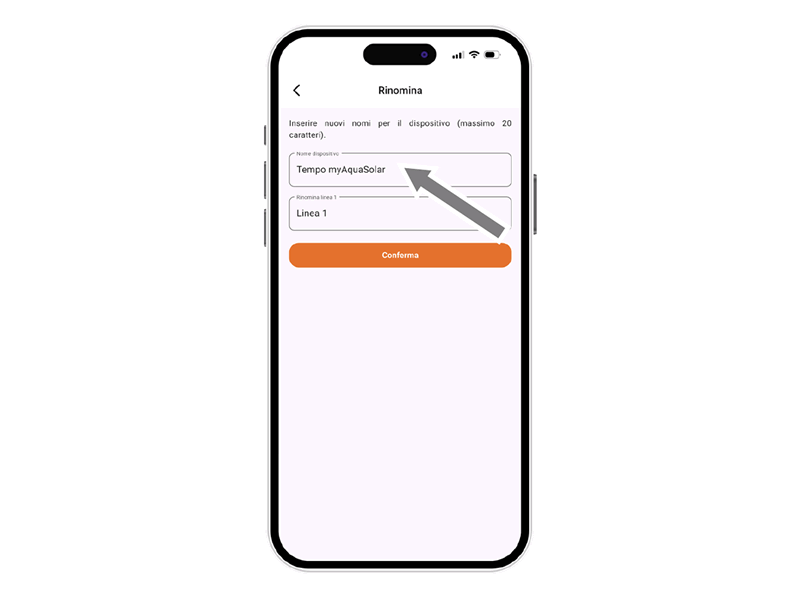
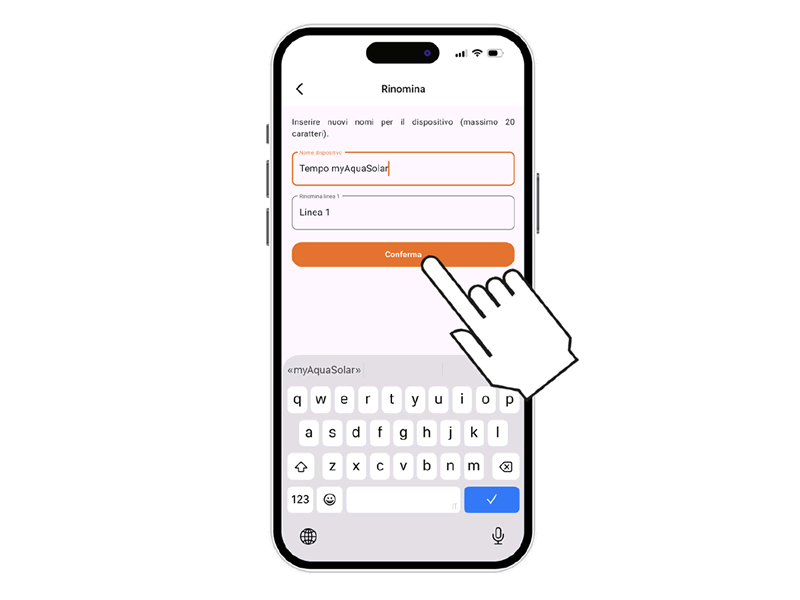
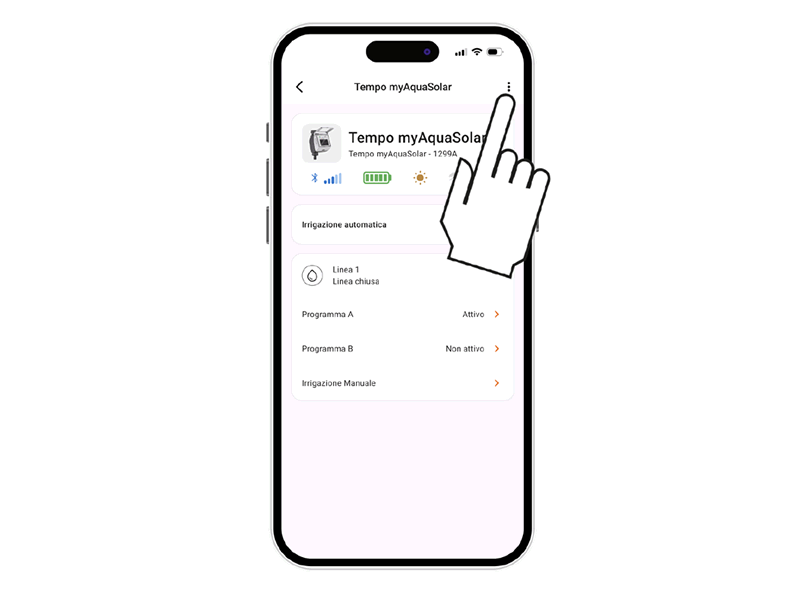
From the myClaber app, it is possible to assign a name to the programmer or its irrigation lines.
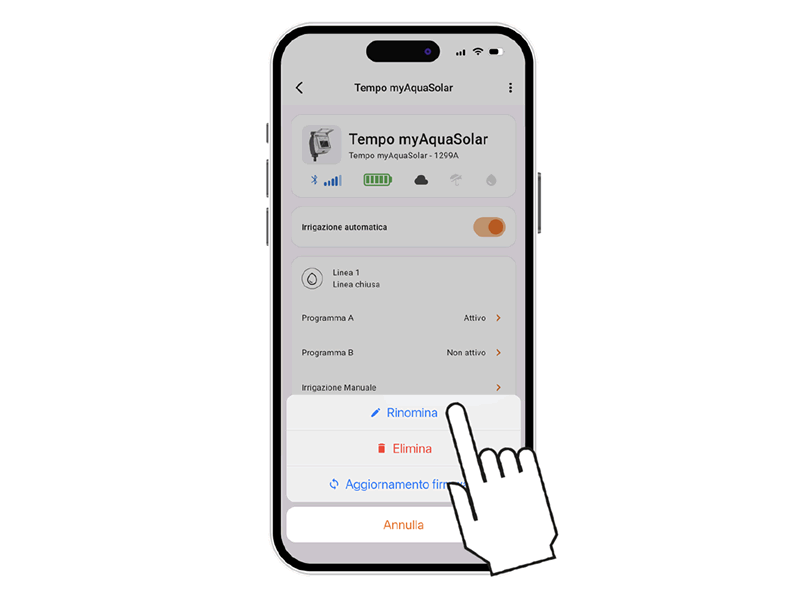
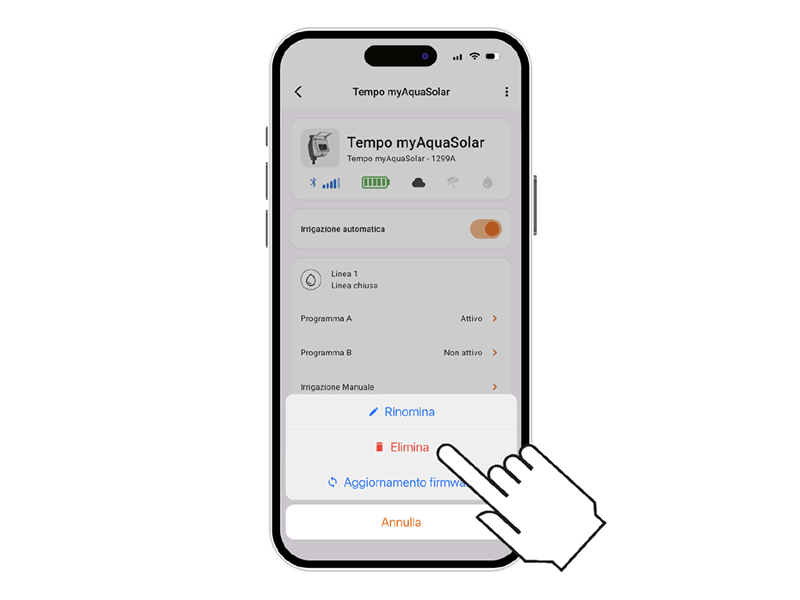
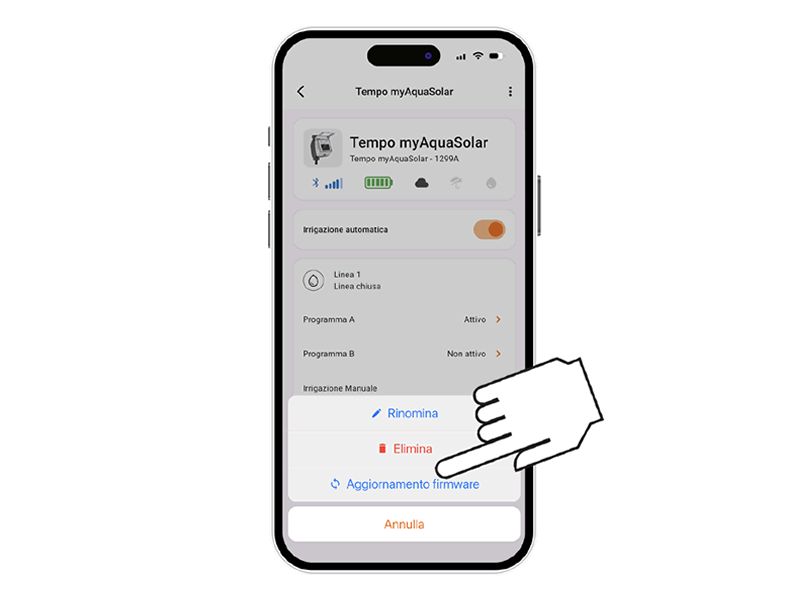
Select the Rename action.
To assign a name to the programmer or irrigation line, select the text box to modify.
Type the text (maximum 20 characters) and confirm.
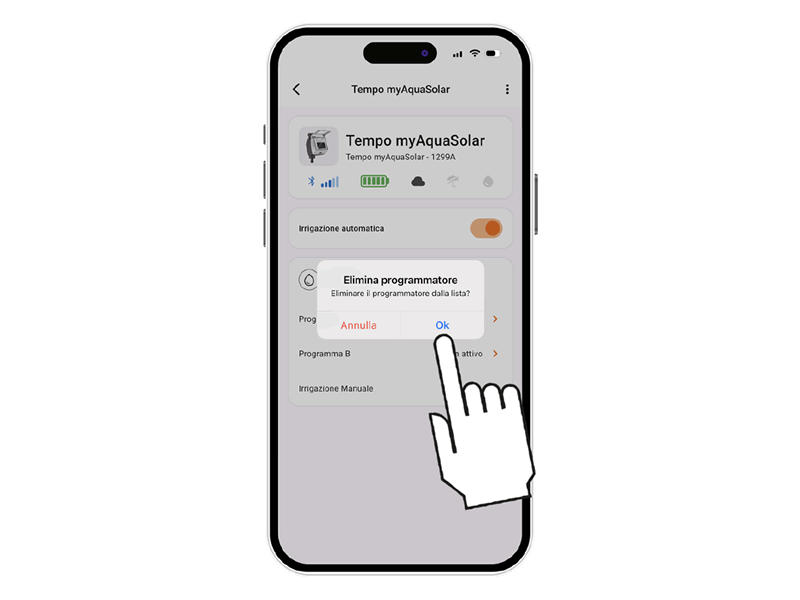
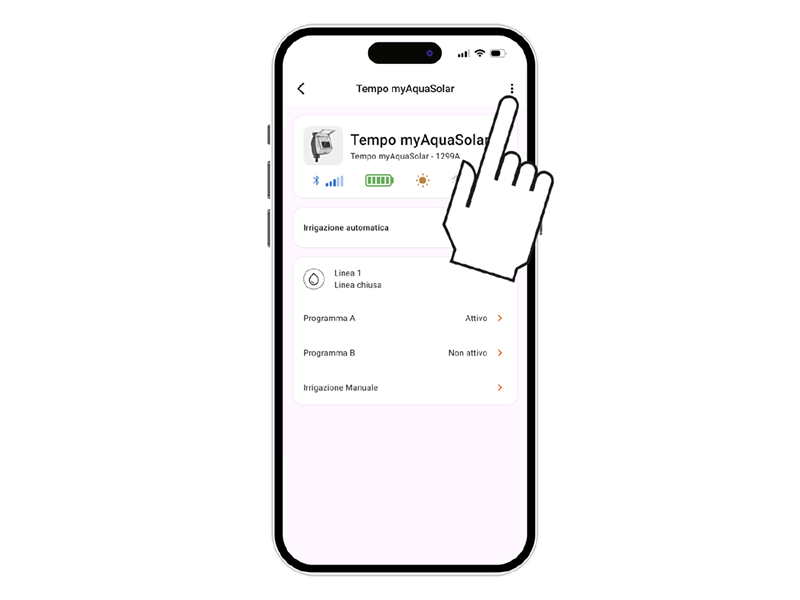
From the myClaber app, it is possible to delete a programmer.
Select the Delete action.
Confirm deletion.
The programmer will no longer appear in the myClaber app. To re-associate it, repeat the ASSOCIATION procedure.Warning:
a programmer deleted from the app continues its scheduled automatic irrigations, but will no longer appear on the main screen. If you only want to suspend scheduled irrigation, use the Automatic irrigation switch.
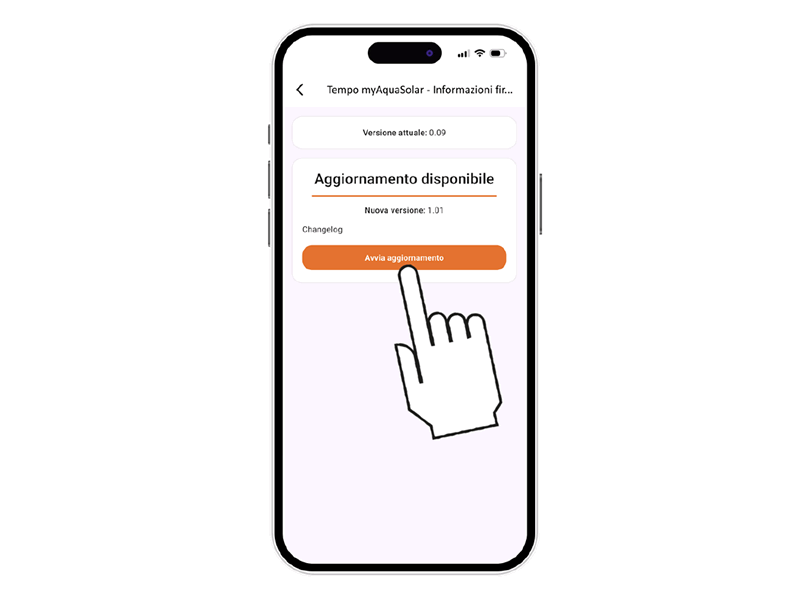
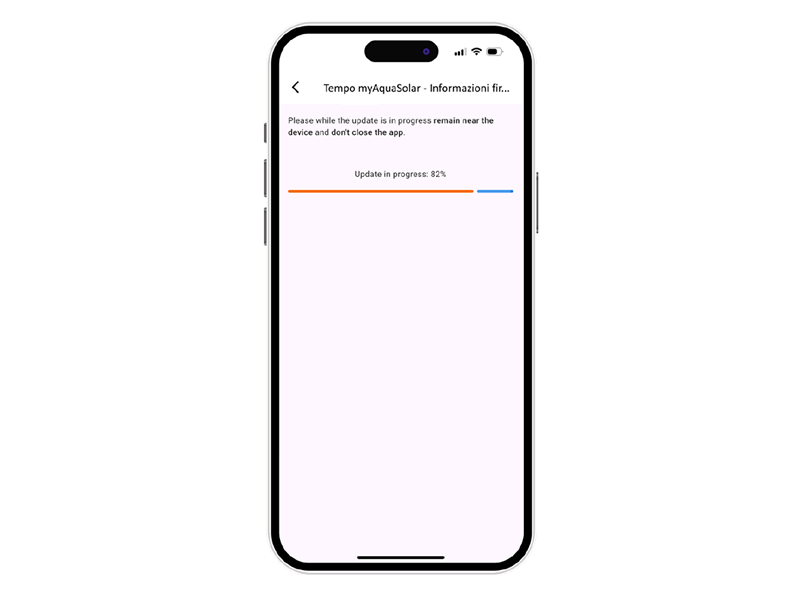
From the myClaber app, it is possible to update the programmer’s software (firmware).
When available, an item UPDATE AVAILABLE appears.
To use the Rain Sensor BT, the update may be required.
Ensure that your smartphone is connected to the internet and press the button to proceed.
Confirm the message to start the update.
During the process, ensure you stay close to the programmer and do not close the app until the update is complete.
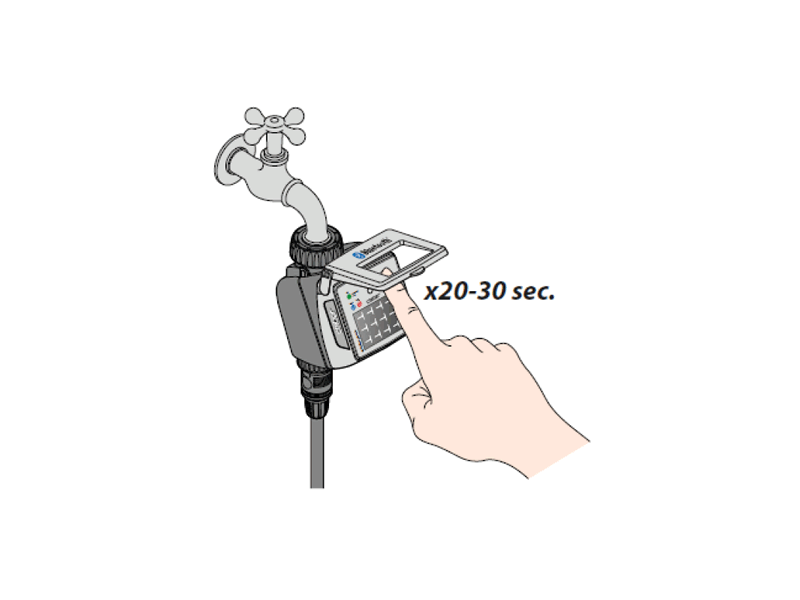
If the programmer behaves abnormally, it can be reset. The reset does NOT delete the set programs nor the date and time; it only restarts the electronic board. Before performing a reset, make sure you are in a bright area to allow the programmer to restart. Never perform a reset while the programmer is irrigating: the water flow may not stop.
To reset the programmer, hold down its button for 20–30 seconds, until the LED stops flashing.
Press the button again to check whether the LED turns on.
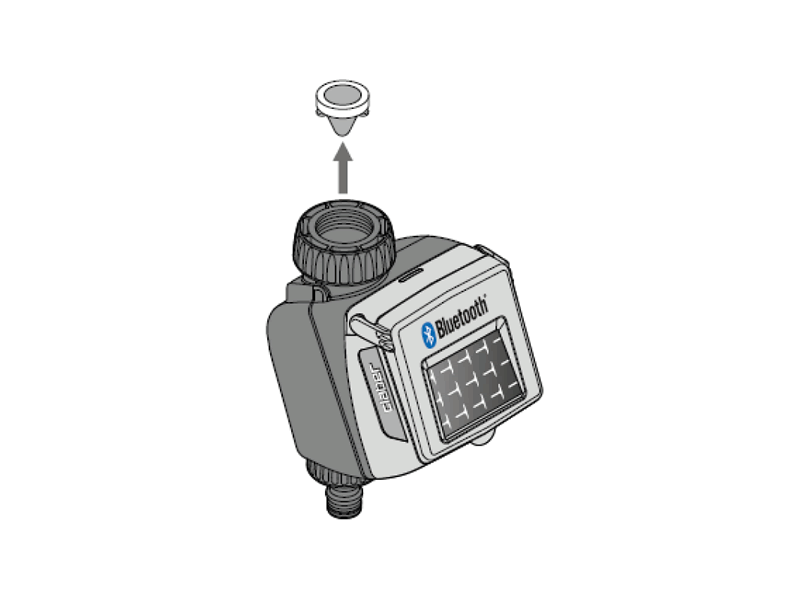
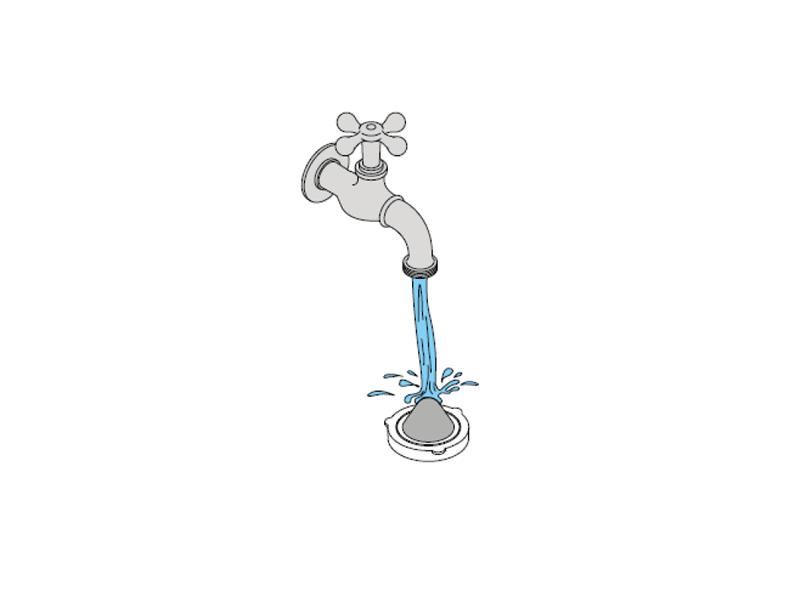
Wash the filter at the end of each season and check it periodically.
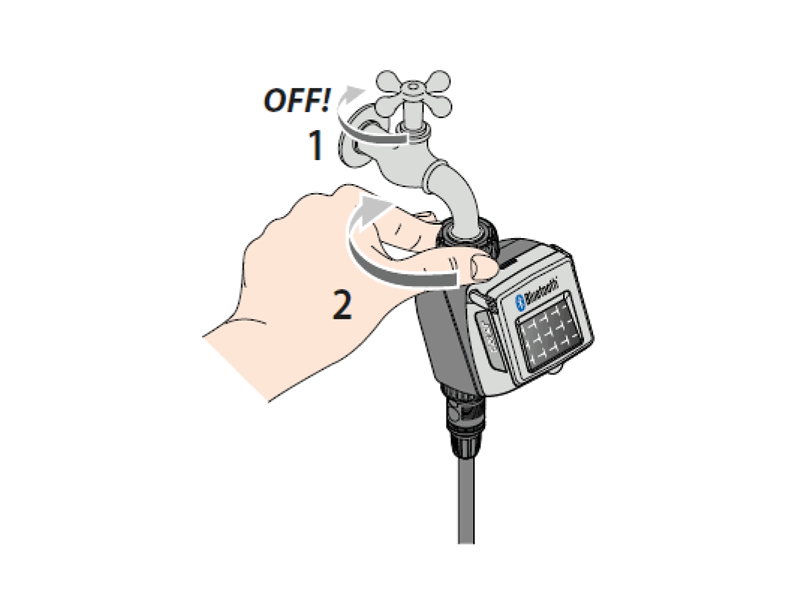
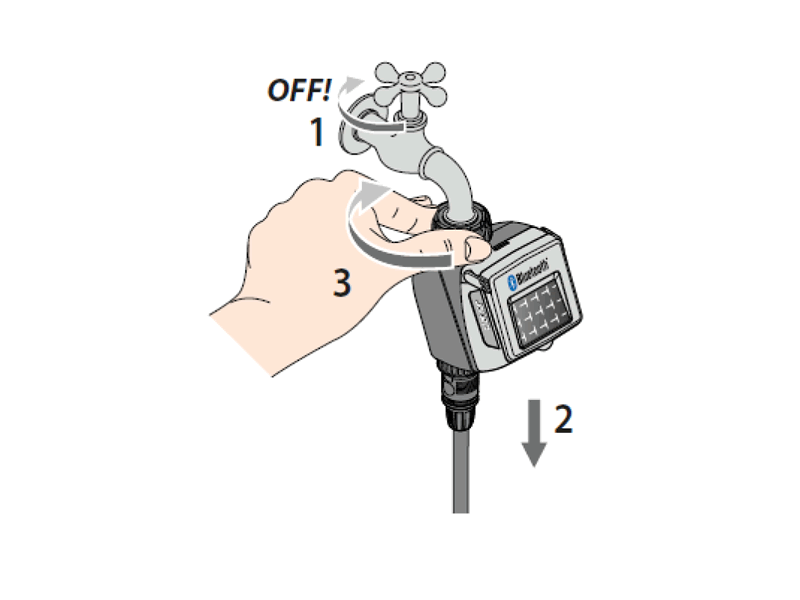
Close the tap and loosen the tightening ring by turning it clockwise.
Remove the filter.
Rinse it under running water. After washing, reassemble everything.
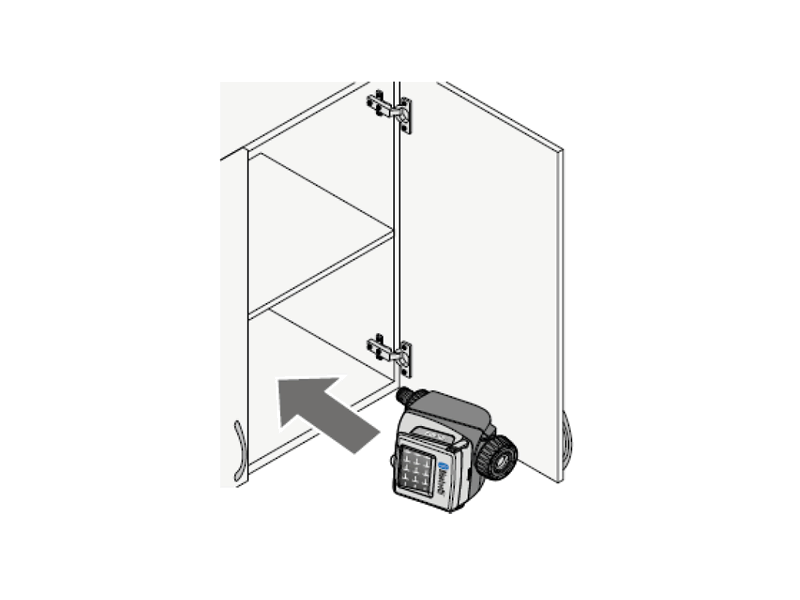
At the end of the season, before the arrival of winter frost, disconnect the programmer from the tap.
Store it in an enclosed, dry place where the temperature does not fall below 3°C.
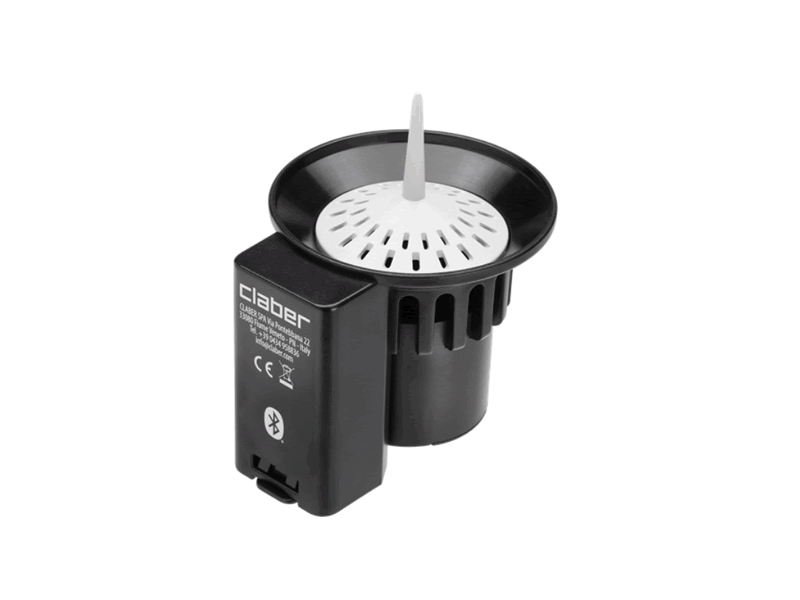
The programmer can be used with the Claber Rain Sensor Bluetooth® (code 90844).
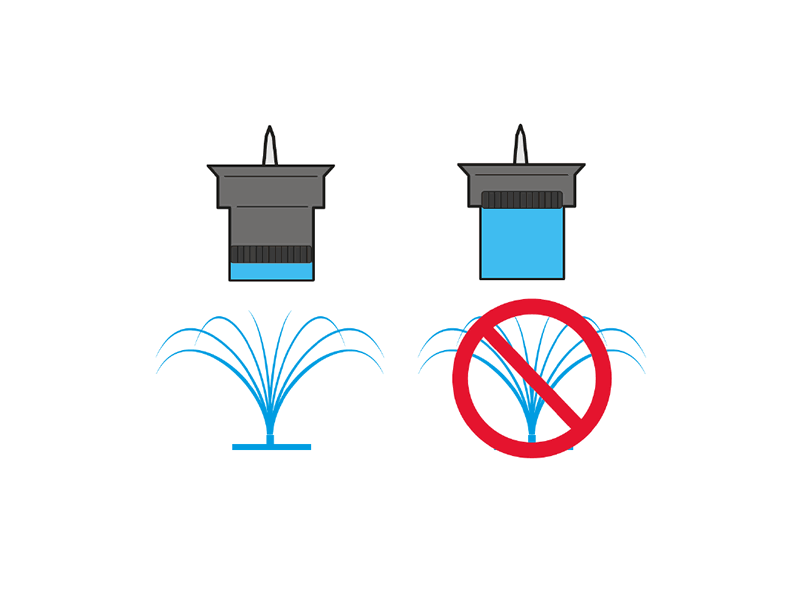
The Rain Sensor communicates its status to the programmer: if the container is full (rainfall of at least 5 mm), irrigation will not start and any irrigation in progress will stop within 1 minute. Manual valve opening, both via button and app, remains enabled even when the Rain Sensor is active.
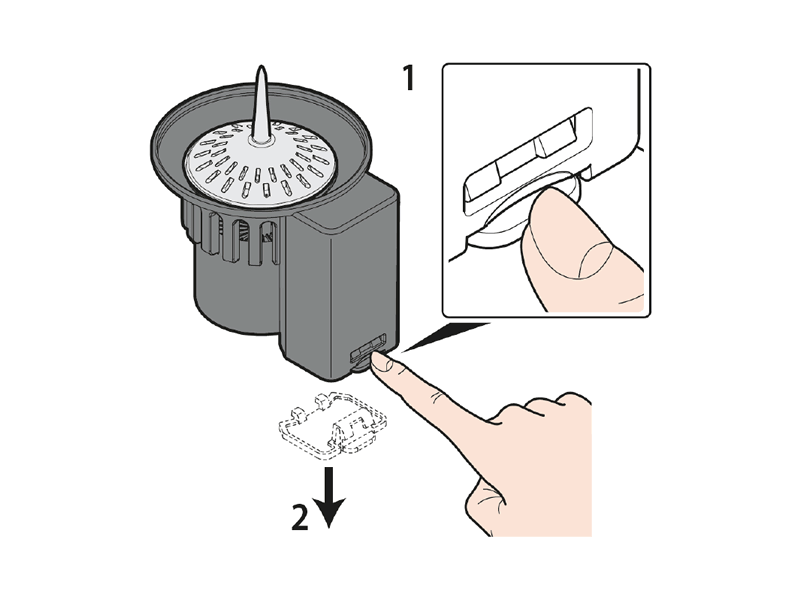
Access the battery compartment.
Unlock and remove the bottom cover using the side latch.
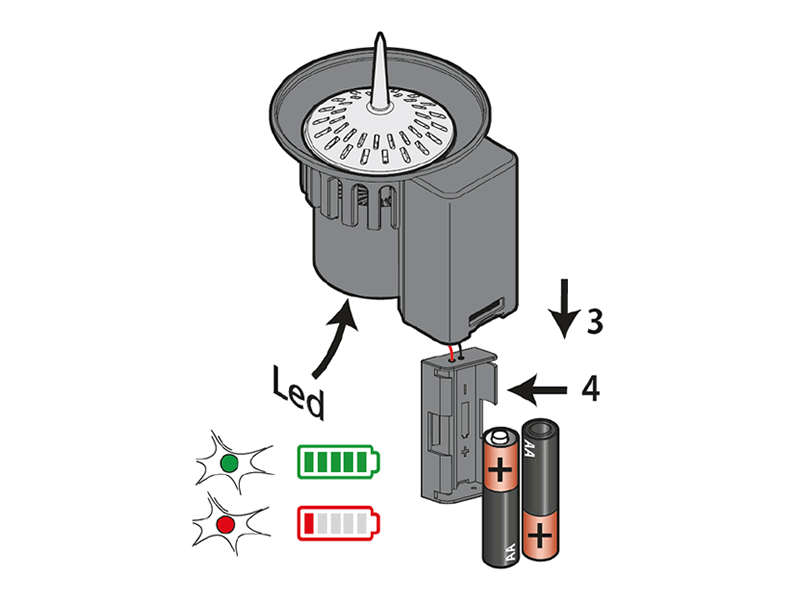
Use only two new, non-rechargeable 1.5V AA (LR6) alkaline batteries.
When the LED flashes red, the batteries are running low: replace them as soon as possible.
Dispose of exhausted batteries in the appropriate recycling containers.
It is recommended to remove the batteries during long periods of inactivity of the Rain Sensor BT.
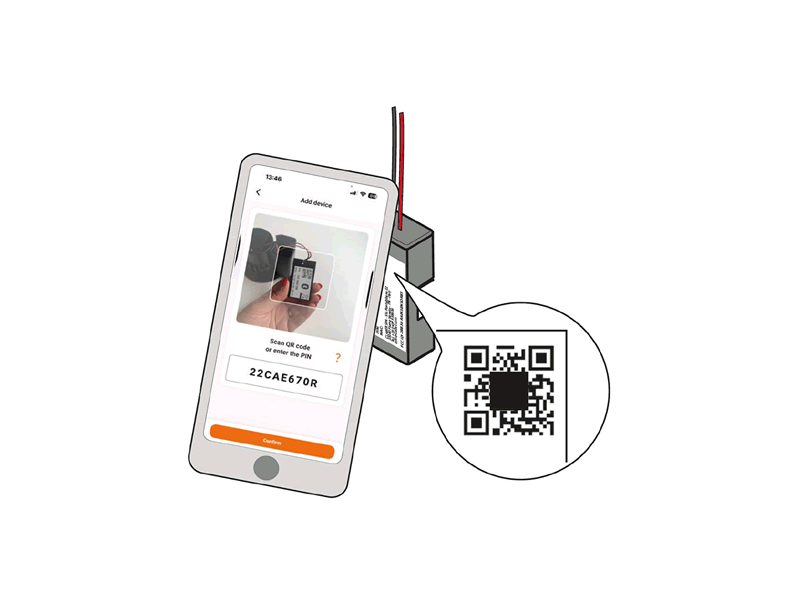
Access the battery compartment and locate the label with information on the back.
Enter the numeric code (PIN) or scan the QR code on the label.
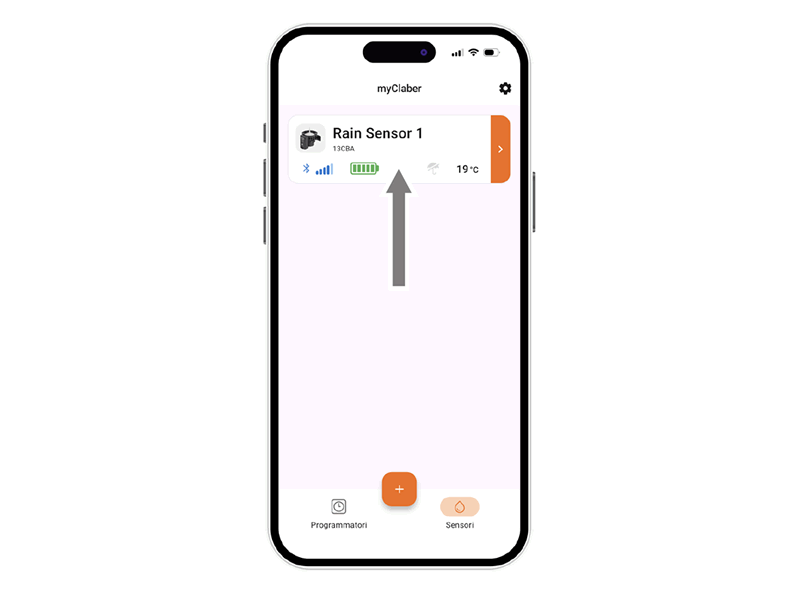
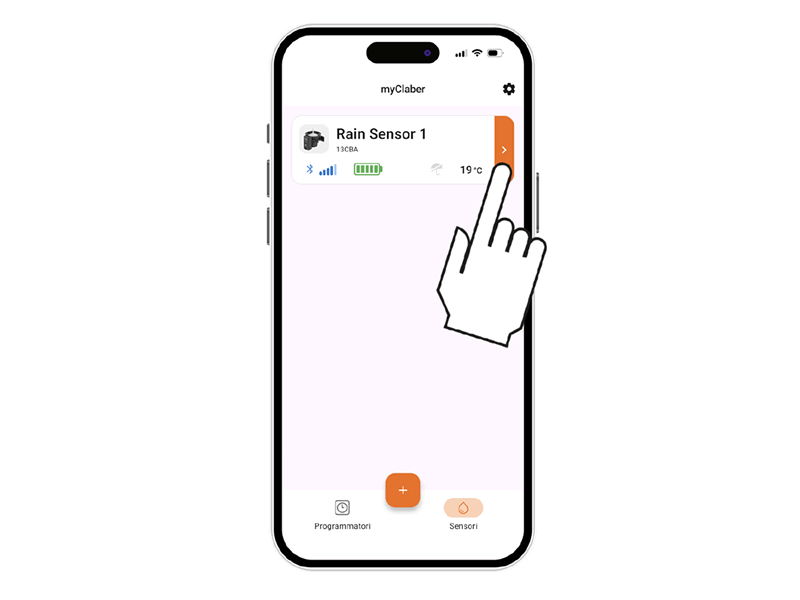
The Rain Sensor BT card will appear on the main page of the app.
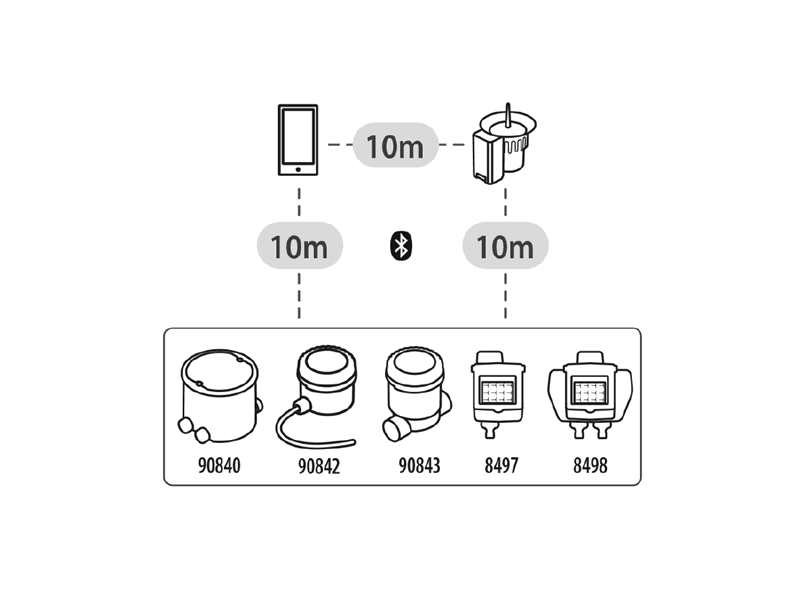
For installation, ensure that the chosen position allows the rain sensor to communicate with all devices to be controlled; each Rain Sensor can communicate with up to 8 programmers.
Maximum range is 10 m without obstacles (see Rain Sensor instruction sheet).
If a single sensor cannot cover all programmers, installing more than one is recommended.
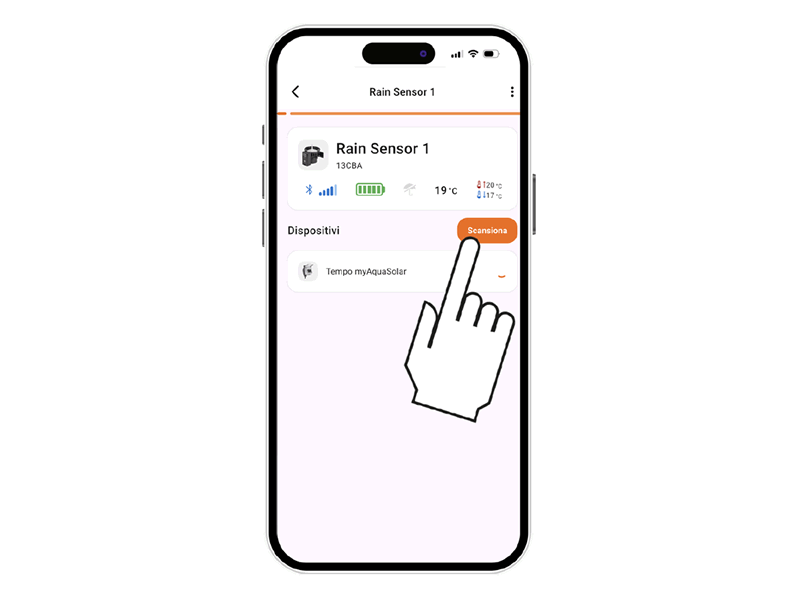
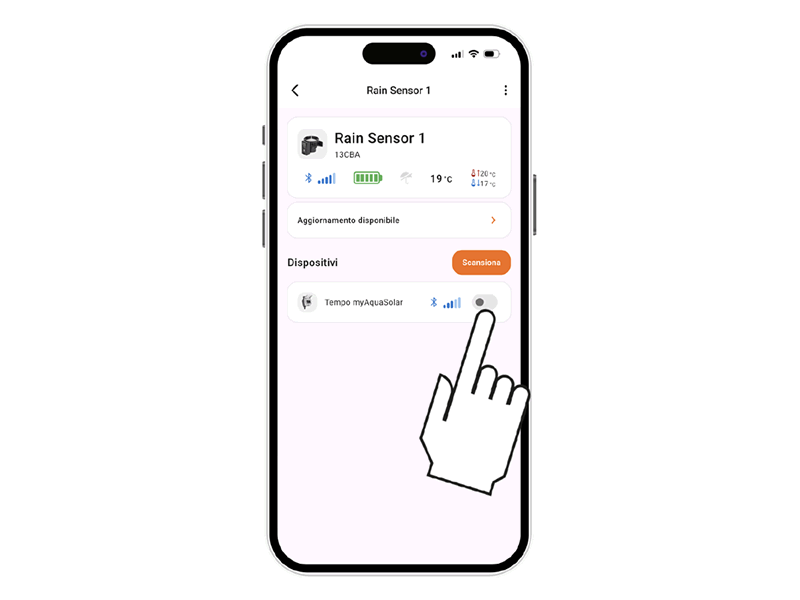
Start the scan to search for programmers available near the Rain Sensor.
Check that the Bluetooth® signal quality is sufficient (min. 2 bars).
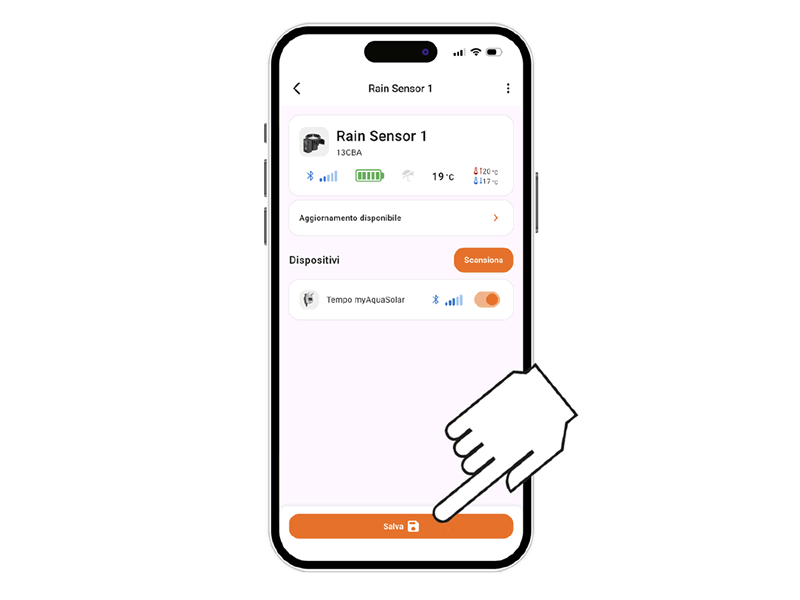
Pair the Rain Sensor with one or more programmers installed in the app.
After pairing the programmer, it is necessary to save the changes.
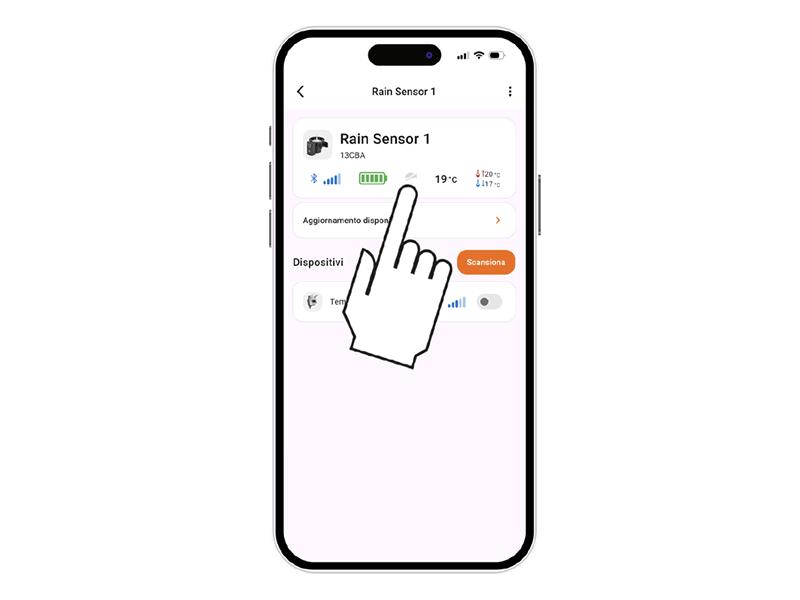
The rain sensor status can be viewed by selecting the programmer card in the app.
The rain sensor status can be displayed in the top bar with the umbrella icon.
The sensor communicates its status to the programmer every minute.
A grey umbrella symbol means the rain sensor is empty and automatic irrigation will proceed as programmed.
A blue umbrella symbol means the sensor is full (rainfall of at least 5 mm/m²) and it sends a stop signal to all associated programmers via the myClaber App.
When the water evaporates, the Rain Sensor will send a signal to resume irrigation.
App Store is a registered trademark of Apple Inc.
Android, Google Play and the Google Play logo are registered trademarks of Google LLC.
The Bluetooth® word mark and logos are registered trademarks of Bluetooth SIG, Inc., used under license.
Claber S.P.A. claims no rights over the third-party trademarks listed.